
Deploying Home Assistant
Deploy Home Assistant as a container on ALPON X5 AI or ALPON X4 through ALPON Cloud: pull the image, push it to the Sixfab Container Registry (or use Docker Hub), configure volumes and Host Network, and open the dashboard.
Deploy Home Assistant on ALPON
Run Home Assistant as a container on your ALPON X5 AI or
ALPON X4 and manage every smart device on the local network from one dashboard. This guide
deploys the official image through ALPON Cloud, mounts a persistent configuration
directory, and opens the dashboard on port 8123.
Push the homeassistant/home-assistant image to your Sixfab Container Registry
(or deploy it straight from Docker Hub), then use the Applications → Deploy panel on
ALPON Cloud to launch the container on your ALPON X5 AI or
ALPON X4 with a /config volume and Host Network enabled. Open
http://<DEVICE_IP>:8123 in a browser to reach the Home Assistant dashboard.
Overview
Home Assistant is a free, open-source home automation platform that controls and manages smart devices — lights, thermostats, sensors, media players — from a single place. Running it as a container on an ALPON X5 AI or ALPON X4 keeps the automation local: the device sits on the same network as your equipment, works without a cloud round-trip, and stays manageable through ALPON Cloud.
The steps below are identical on ALPON X4 and ALPON X5 AI. For advanced configuration, integrations, and add-ons, see the official Home Assistant documentation.
You need an ALPON X5 AI or ALPON X4 registered on ALPON Cloud, and Docker installed on your build machine to pull and push the image. New to container deployment? Start with Containerize Apps for ALPON.
-
1
Add the Home Assistant container
Make sure the
homeassistant/home-assistantimage is available to your device. The recommended path is to push it to your Sixfab Container Registry so deployments are fast and work offline. From your build machine, pull thearm64image:bash · pull the imagedocker pull --platform linux/arm64 homeassistant/home-assistant:latest
Then log in to Sixfab Registry, click + Add Container, and follow the prompts to push the image.
Pushing images to the Sixfab Container RegistryFor the full walkthrough of tagging and pushing an image, see Update Containers from the Sixfab Container Registry.
Alternative: deploy straight from Docker Hub
If you prefer not to use the Sixfab Container Registry, choose “I would like to use my own container path” during deployment and enter
homeassistant/home-assistant:latest. The container is then pulled directly from Docker Hub (the device needs internet access at deploy time). -
2
Deploy the container on ALPON
Open your device in ALPON Cloud, go to the Applications section, and click + Deploy. In the Deploy Container window, use these settings:
Container NamehomeassistantImageThe Home Assistant image and tag you pushed to the Sixfab Container Registry — or, using the alternative option,homeassistant/home-assistant:latest.VolumesClick + Add More and add the three volumes in the table below.Enable Host NetworkTurn this on so Home Assistant can discover and talk to devices on the local network.Read/Write Local Path Target Path Read Only /etc/localtime/etc/localtimeRead Only /etc/timezone/etc/timezoneRead/Write /tmp/config/configWhere the configuration livesThe
/tmp/configdirectory on the device stores Home Assistant’s settings. Create or editconfiguration.yamlthere to customize your setup; the two time-zone mounts keep the container’s clock aligned with the device.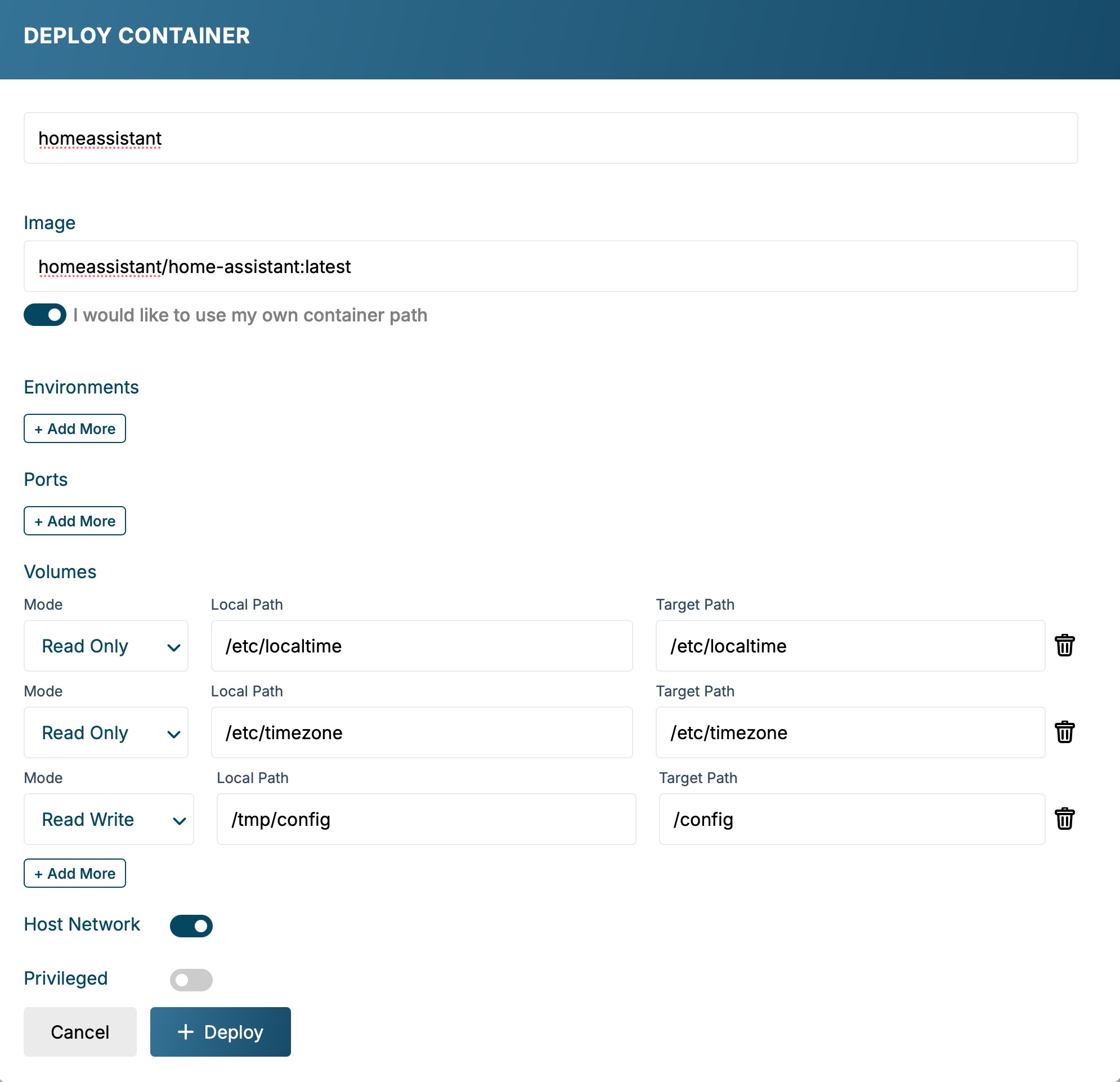
The Deploy Container window in ALPON Cloud with the volumes and Host Network configured. Click + Deploy to launch Home Assistant on the device.
-
3
Open the Home Assistant dashboard
Once the deployment finishes, find the device's local IP address under Asset Details → Network tab → Interface Monitoring → Details, then open the dashboard in a browser:
browser · Home Assistant dashboardhttp://<DEVICE_IP>:8123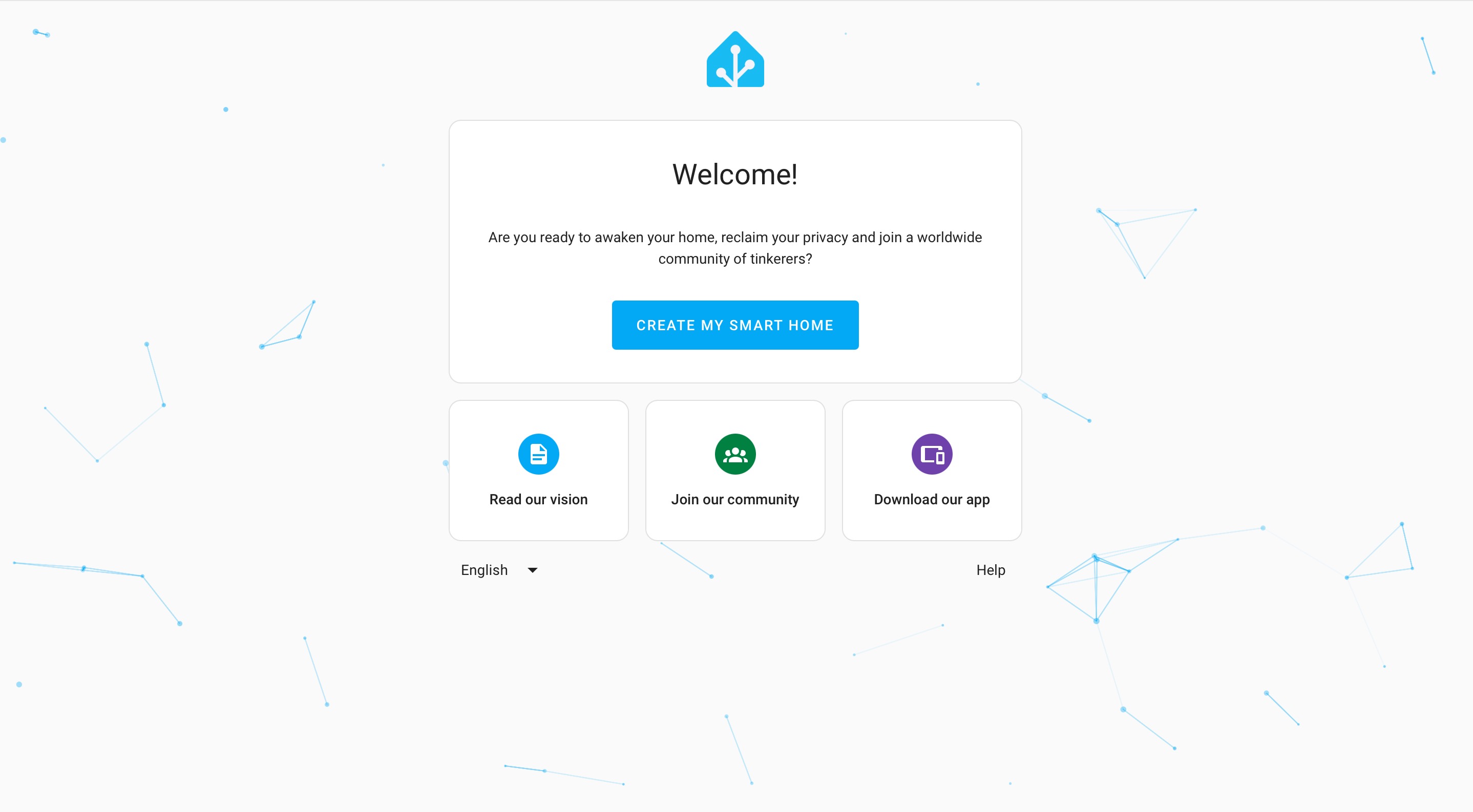
Home Assistant’s onboarding screen served from the ALPON device. Home Assistant’s onboarding wizard should load. If it doesn't, confirm the container is running in the Applications section and that Host Network was enabled in step 2.
- The
homeassistantcontainer shows as running in the Applications section. - The dashboard loads at
http://<DEVICE_IP>:8123. - Changes you make in
/tmp/config/configuration.yamlsurvive a container restart.
Home Assistant is now running on the ALPON. Complete the onboarding wizard, then add your integrations from the Home Assistant settings.
Production image policy: Replace floating
:latestreferences with a reviewed immutable tag or digest, then record the selected version for rollback.
Updated 9 days ago