
ALPON Cloud
Onboard, monitor, update, and deploy containers to ALPON X5 AI and ALPON X4 fleets from ALPON Cloud at connect.sixfab.com.
ALPON Cloud
The shared management plane for ALPON X5 AI and ALPON X4 fleets. Onboard devices, monitor telemetry, push OTA updates, deploy containers, and manage cellular connectivity from a single interface at connect.sixfab.com.
ALPON Cloud is the cloud-based fleet management platform for ALPON
edge AI computers. It delivers remote monitoring, OTA software updates, browser-based
terminal access, container deployment, and cellular connectivity management for both
ALPON X5 AI and ALPON X4 devices, all through Sixfab
Connect at connect.sixfab.com. The same Asset Detail UI, the same telemetry
schema, and the same OTA pipeline — one platform, two devices.
Video walkthrough
ALPON Cloud in seven minutes
A full guided tour of the Sixfab Connect dashboard — assets, metrics, remote terminal, OTA, eSIM, registry, and billing. Click a chapter to jump to that section in the video.
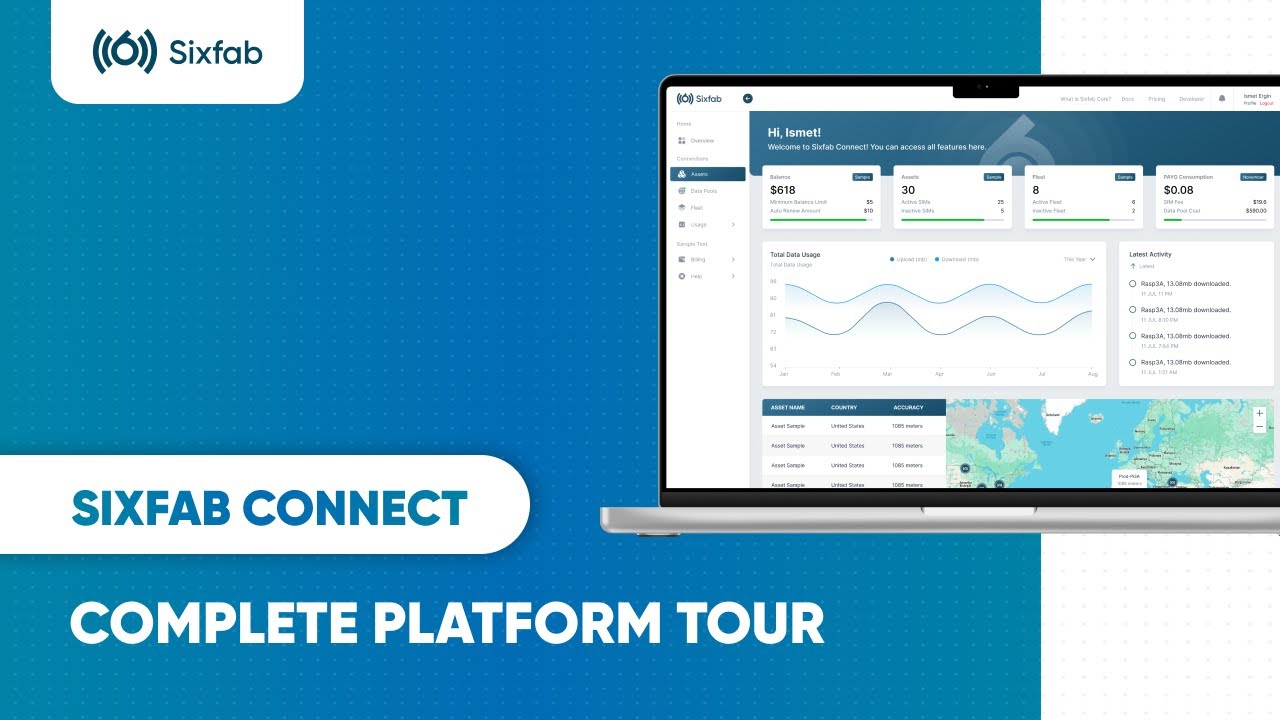
Chapter timestamps
- 00:00Introduction & Dashboard Overview
- 00:49Asset Management & Tagging
- 01:18Advanced Filtering
- 01:32Device Metrics & Activation
- 01:54Remote Terminal Access
- 02:47System Stats & Remote Support
- 03:09Device Reboot & Update
- 03:19Network Config & Failover
- 03:50eSIM & Profile Management
- 04:30Remote App Deployment (Containers)
- 04:51Cellular Plans & Data Pools
- 05:06API Keys
- 05:17Registry
- 05:32Billing & Cost Management
- 06:07Help & Community Support
- 06:27Conclusion
Quick tour
Every ALPON device has a dedicated Asset Detail page on Sixfab Connect, organized into four tabs. Each tab targets a specific aspect of edge AI computer management, from health metrics to container workloads. The layout is identical for ALPON X5 AI and ALPON X4.
The Connect UI and remote operations are the same on both devices: identical Asset Detail layout, monitoring fields, and remote actions — learn the platform once, use it for either fleet. The hardware differs, so check the ALPON device comparison before mixing them in one deployment.
Onboarding
Log in to connect.sixfab.com, open Assets from the side menu,
click Register Asset, then either scan the QR code on the device's bottom
label with your phone or enter its serial number manually. Once registered, set the
Active / Inactive toggle to Active to bring the device
online. The same flow works for both ALPON X5 AI and ALPON X4.
How to register an ALPON device
Open the Assets page
Sign in to connect.sixfab.com and select Assets from the side menu.
Click Register Asset
Two registration methods are supported:
- QR scan: scan the QR code on the device's bottom label with your phone. You are redirected to Connect with the serial number pre-filled.
- Manual entry: type the device Serial Number printed on the label, then click Register.
Activate the asset
Open the new asset and switch the Active / Inactive toggle at the top right of the Asset Detail page to Active. The device must be online and the account balance must cover the device's monthly fee.
Verify connectivity
Once the device is online, the Asset Detail page reports Device Status: Connected, populates CPU and memory metrics, and lists running containers. Boot and provisioning time vary, so rely on these indicators rather than a fixed timer.
Fleet management
Fleet management on ALPON Cloud combines two primitives: tags for organizing assets, and teams for sharing access with controlled permissions. Together they scale from a single device to large industrial deployments mixing ALPON X5 AI and ALPON X4 hardware.
Tags
Tags are user-defined labels used to group assets — for example production,
development, or region-eu. A tag carries a key, a display name,
and an optional color, and it can be attached to any number of assets. Detach a tag from
every asset before deleting it.
Teams & permissions
Teams let an account owner invite collaborators with granular, revocable permissions.
Combine teams with tags to scope access — an owner can give a developer asset management
rights restricted to assets tagged development only.
Open Profile & Team Management
From the side menu of Connect, navigate to your profile and open the team management section.
Send a team invitation
Click Send Team Invitation, enter the email address of an existing Connect user, and select the permissions to grant.
Apply tag-based filtering
When an asset permission is selected, a Tags Filter appears. Restrict the member to specific tags, or check Manage All Tags for unrestricted access.
Member accepts the invite
The invitation appears as an in-app notification in the invitee's account. Once accepted, the member can switch to the team via the account dropdown in the top-right corner of Connect.
Permission changes apply on the member's next request, so revoking access takes effect without waiting for the member to sign out.
Monitoring & telemetry
Each ALPON device streams a structured set of metrics to ALPON Cloud, surfaced across the Overview, Device, and Network tabs of the Asset Detail page. Telemetry covers compute, power, connectivity, and physical location — suitable for operating industrial edge AI fleets at scale.
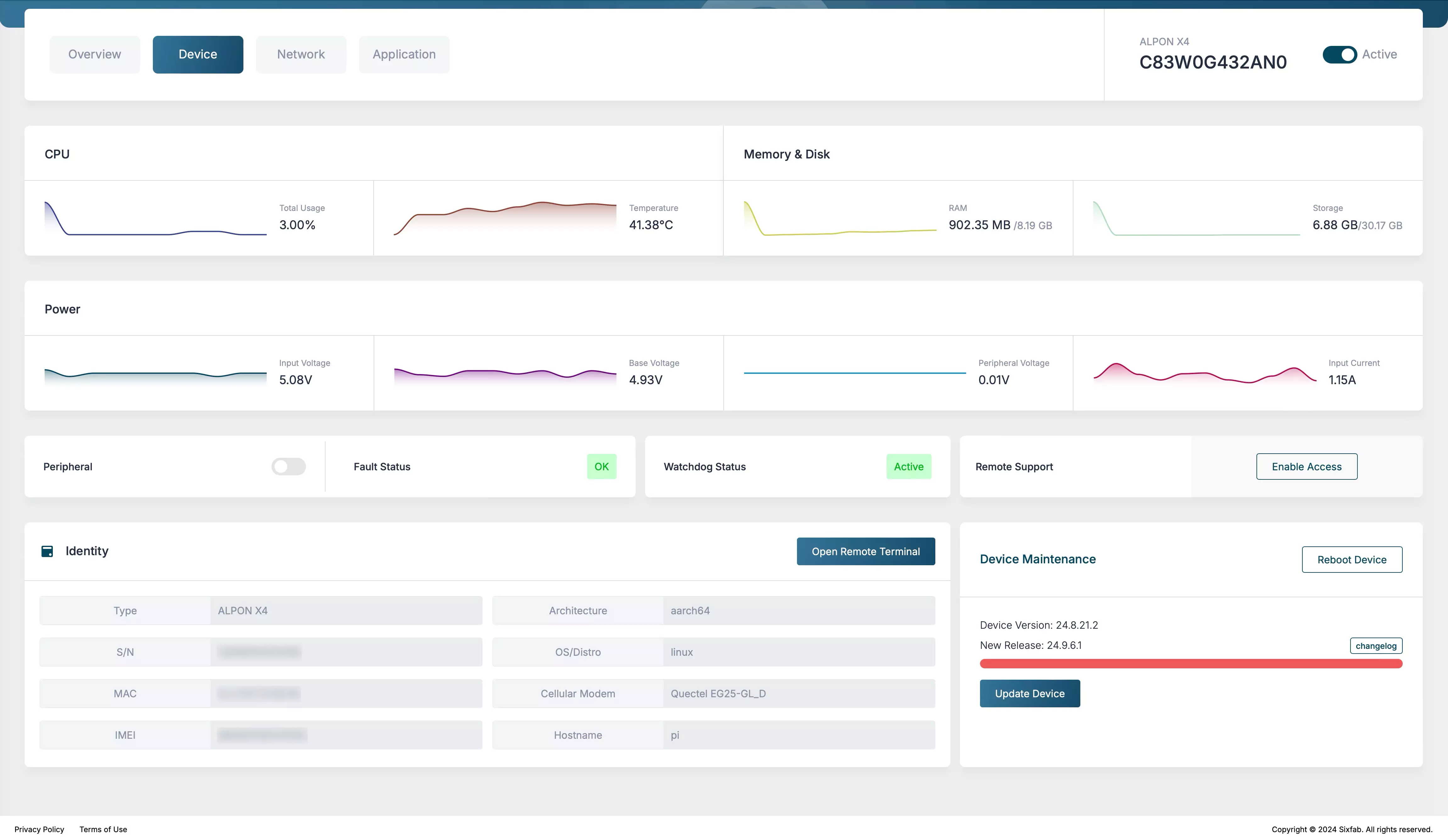
Available metrics
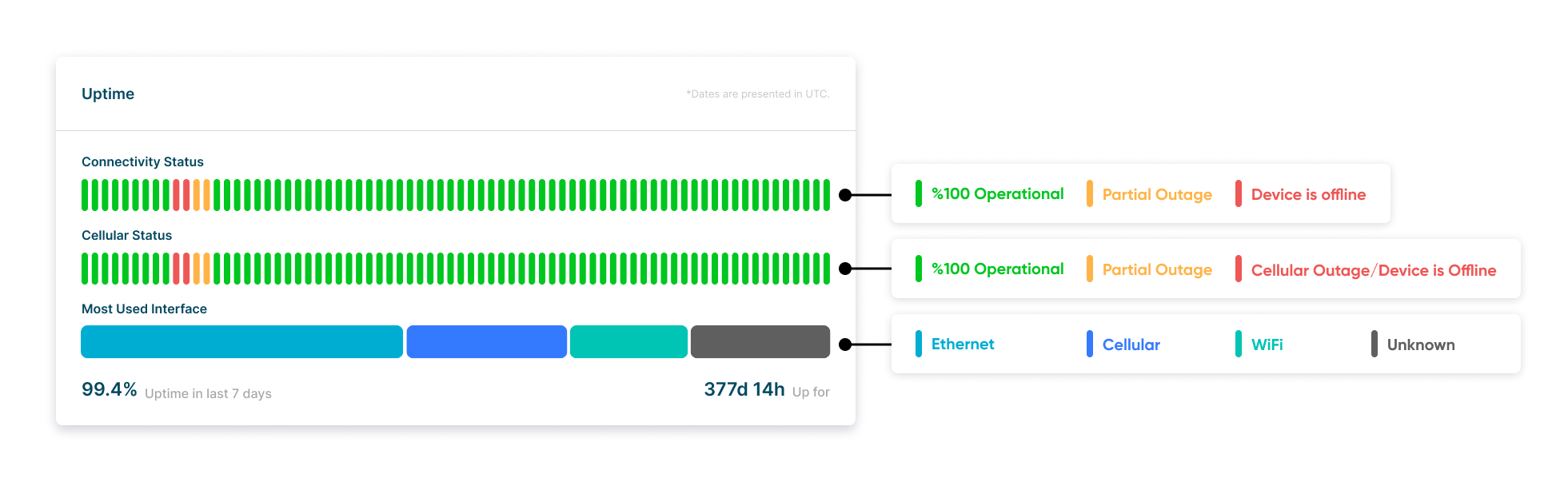
Uptime and connectivity history
The Network tab includes a 7-day connectivity timeline rendered in 2-hour buckets. States are color-coded:
- 100% Operational: device fully functional during the bucket.
- Partial Outage: limited functionality (one or more interfaces degraded).
- Cellular Outage: cellular link unavailable, other interfaces may still be active.
- Offline: device unreachable.
Device location
Track the physical location of each ALPON device on a live map. Useful for verifying field deployments and reconciling assets against expected sites.
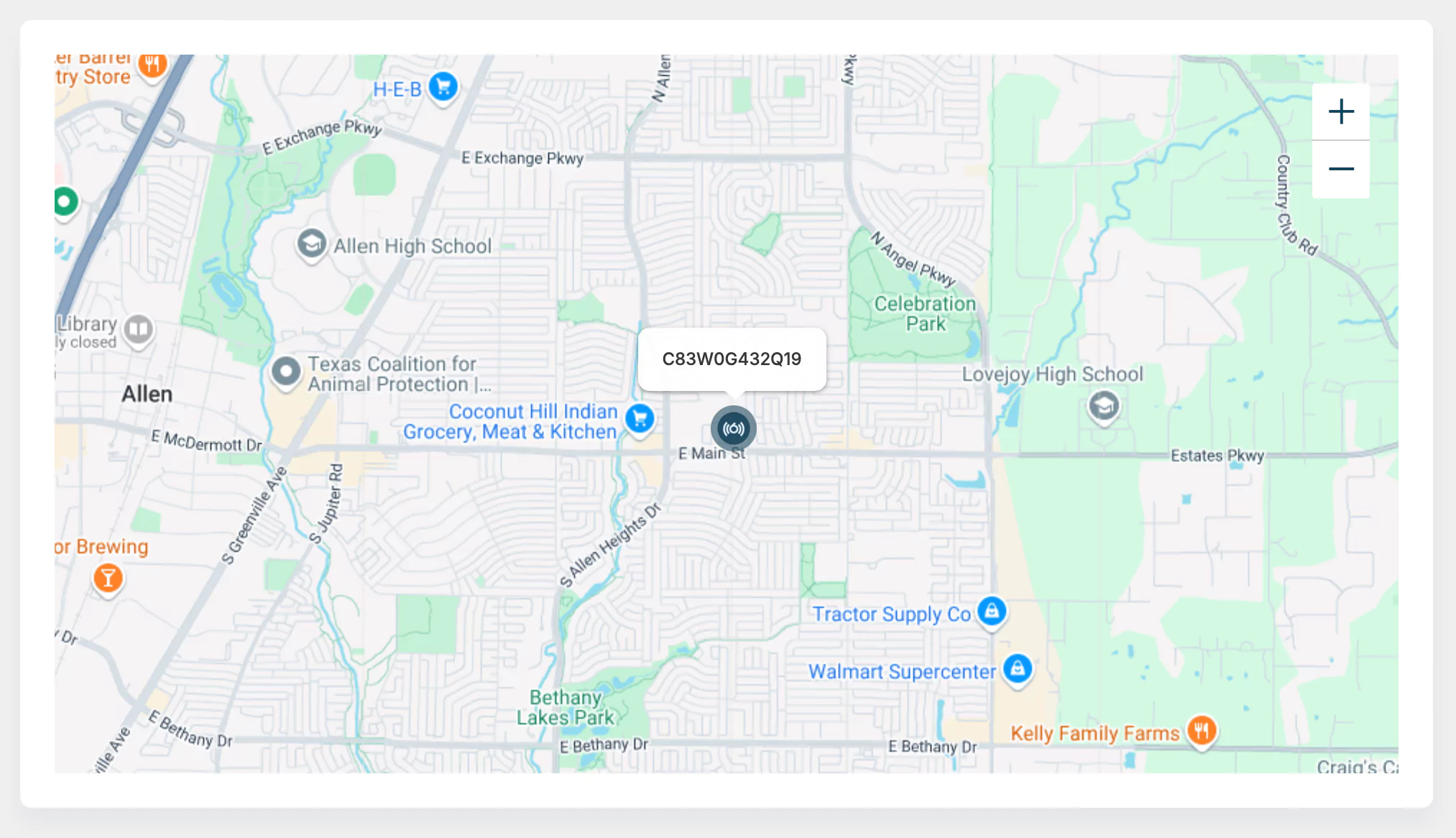
If GPS is weak or unavailable, location is estimated from nearby cell towers. Accuracy varies with tower density. Treat the map as a guide rather than a precise fix.
Device telemetry refreshes as soon as the device reports a state change. Sixfab SIM data usage is reported with a delay, and device location is refreshed periodically rather than continuously.
Remote access
ALPON Cloud provides browser-based shell access to every connected device, with no SSH client, public IP, or local network configuration required. There are two access modes: Remote Terminal for the device owner, and Remote Support for time-bounded Sixfab assistance.
Open a secure shell directly from the Connect dashboard — either into the device host, or into a running container with the Shell button on the container's detail view under the Applications tab.
Access requires a valid one-time access code or an already authorized Connect session with the required permissions.
Time-bounded access for the Sixfab support team to assist with troubleshooting. Owner-controlled — only the device owner can enable it; Sixfab staff cannot grant themselves access.
Access is time-bounded — the dashboard shows how long it stays valid — and the owner can revoke it at any time from the Asset Detail page.
How to enable Remote Support
- Open the asset on Connect, scroll to the Remote Support card on the Device tab.
- Click Enable Access. A support token is generated and shared with the Sixfab team.
- Sixfab staff connect via the platform back-office while the token is valid.
- Click Disable Support Token at any time to revoke access immediately.
Support access requires explicit owner consent and expires automatically, so escalation stays low-friction without leaving standing access to deployed edge AI hardware.
OTA updates
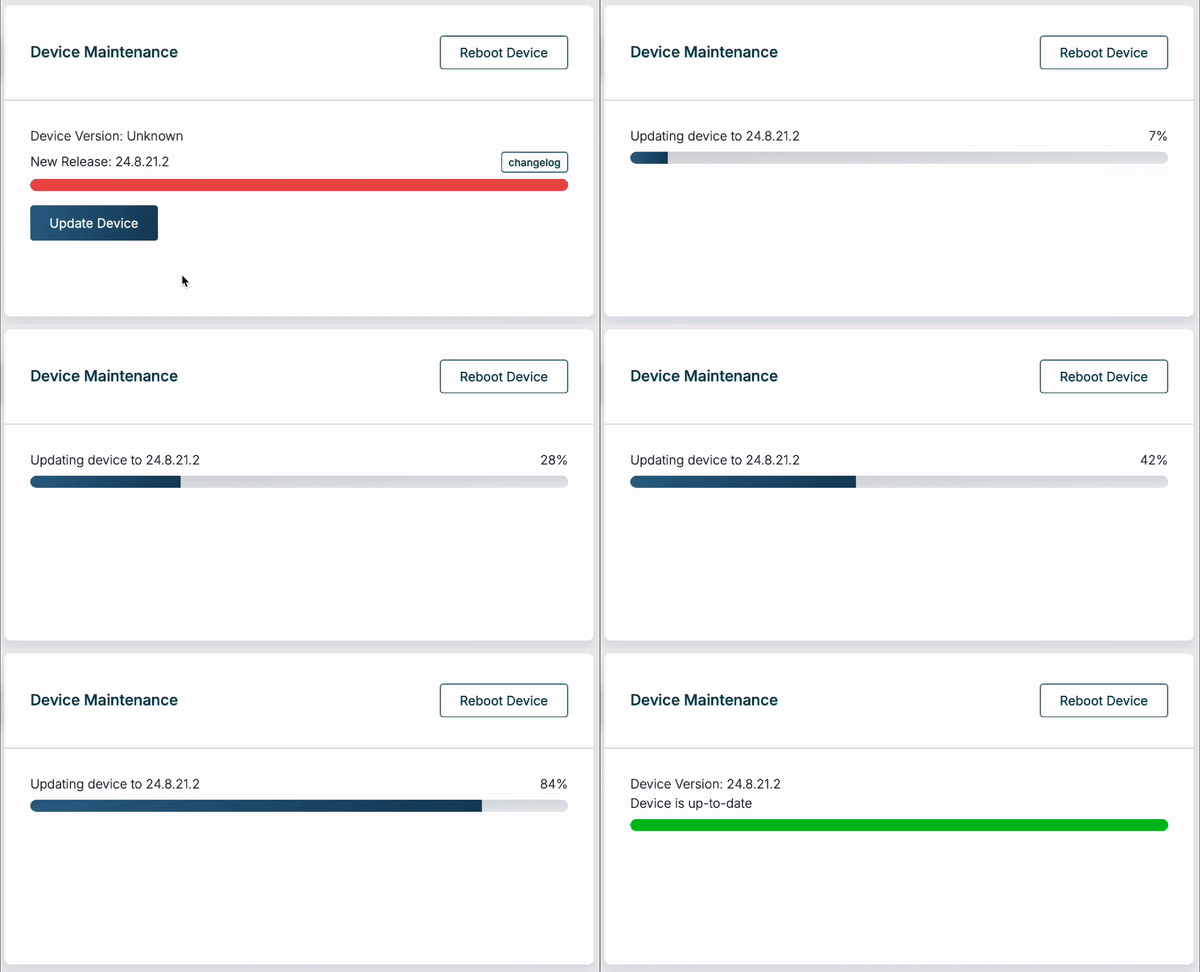
Sixfab publishes update bundles and delivers them to devices over an authenticated channel. When a device is running an outdated version, an Update Device button appears on the Asset Detail page. Updates are applied asynchronously, and progress is streamed to the dashboard in real time. The pipeline is shared across ALPON X5 AI OS and ALPON X4 OS images, but each device receives only the bundle built for its hardware.
Update flow
Bundle is published
New software bundles (containing system applications and device firmware) are published by Sixfab and indexed in Connect.
Update button appears
If the device is running an older version than the latest available bundle, the Update Device button appears in the Device Maintenance card.
Apply the update
Click Update Device. The platform queues an async task and the device pulls the bundle, applies it, and reboots if needed. Progress streams to the dashboard while the update runs.
Verify completion
Once finished, the Device Version field updates to the new bundle version and the Update button disappears until the next release.
Beta channel
Devices flagged as beta on Connect receive additional update capabilities:
- Can install
beta-tagged bundles in addition to stable releases. - Can be updated to any selected bundle version, not only the latest one.
- Useful for staged rollouts and pre-release validation across an edge AI deployment.
OTA updates run in the background and may take several minutes depending on bundle size and connection quality. Closing the browser tab does not cancel the update; status resumes streaming when the page is reopened.
eSIM & connectivity
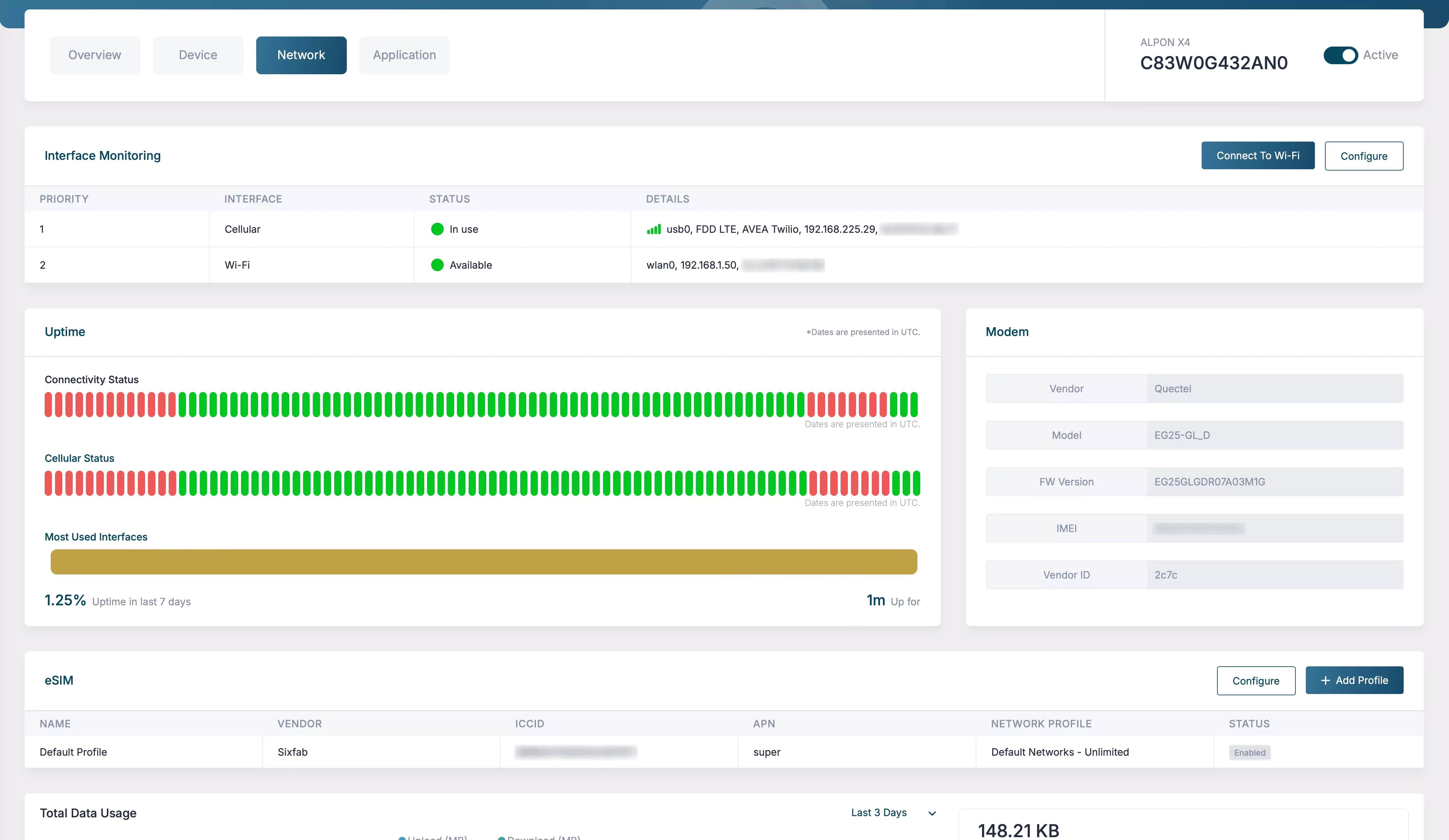
ALPON Cloud manages cellular connectivity for every device through the Network tab. Both ALPON X5 AI and ALPON X4 carry an on-board eSIM (eUICC SGP.22) and support dynamic interface priority, providing resilient connectivity for industrial edge AI deployments.
Supported SIM types
How to install an eSIM profile
Confirm device is online
The device must be reachable on Connect for the eUICC to receive the profile. An offline device returns an error.
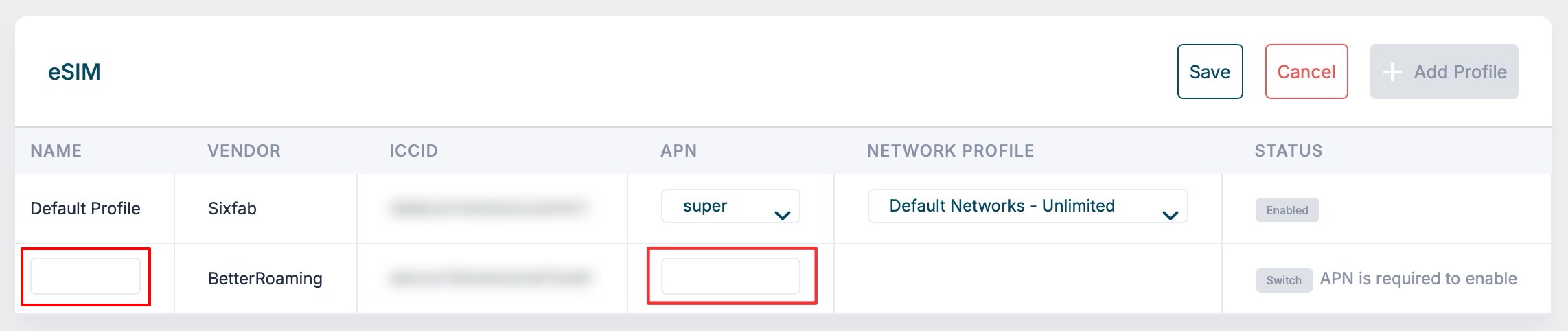
Add a new profile
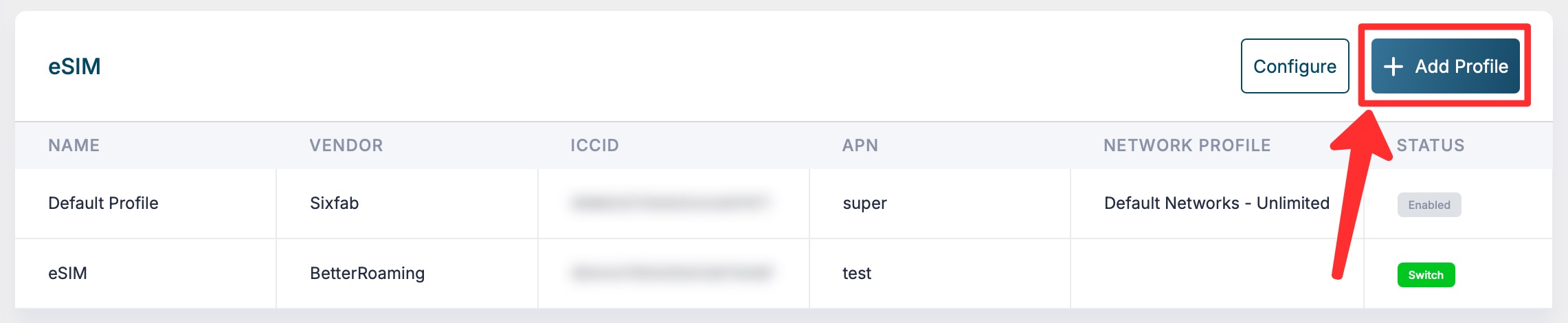
On the Network tab, click + Add Profile. Enter the activation code provided by your eSIM vendor and click Download.
Accept terms and download
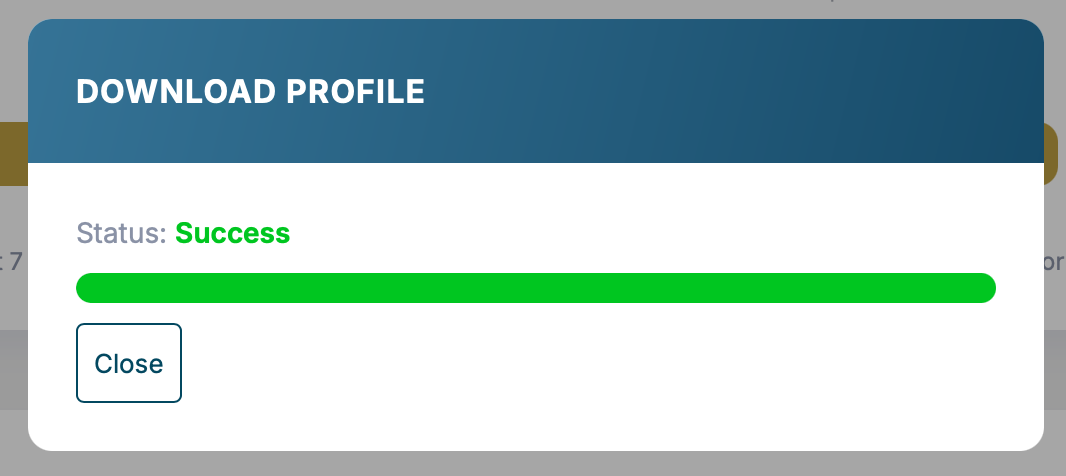
Review and accept the eSIM terms (note the restrictions on profile deletion and transfer). The status moves through Preparing and Downloading before reaching Success.
Configure APN
Click Configure on the new profile, enter the APN and Name details, then click Save. The profile is now ready to use.
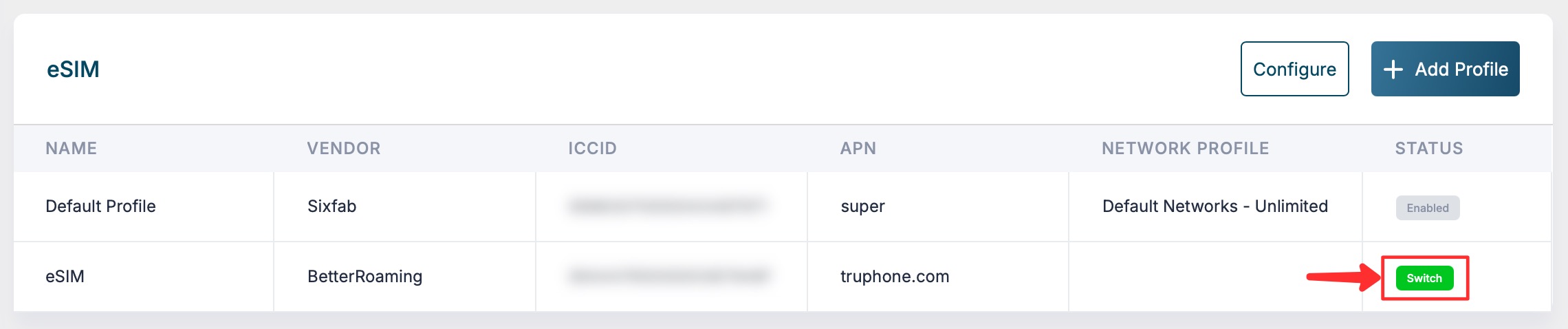
Switch active profile
Use the Switch button in the Status column to make a profile active. Only one eSIM profile is active at a time.
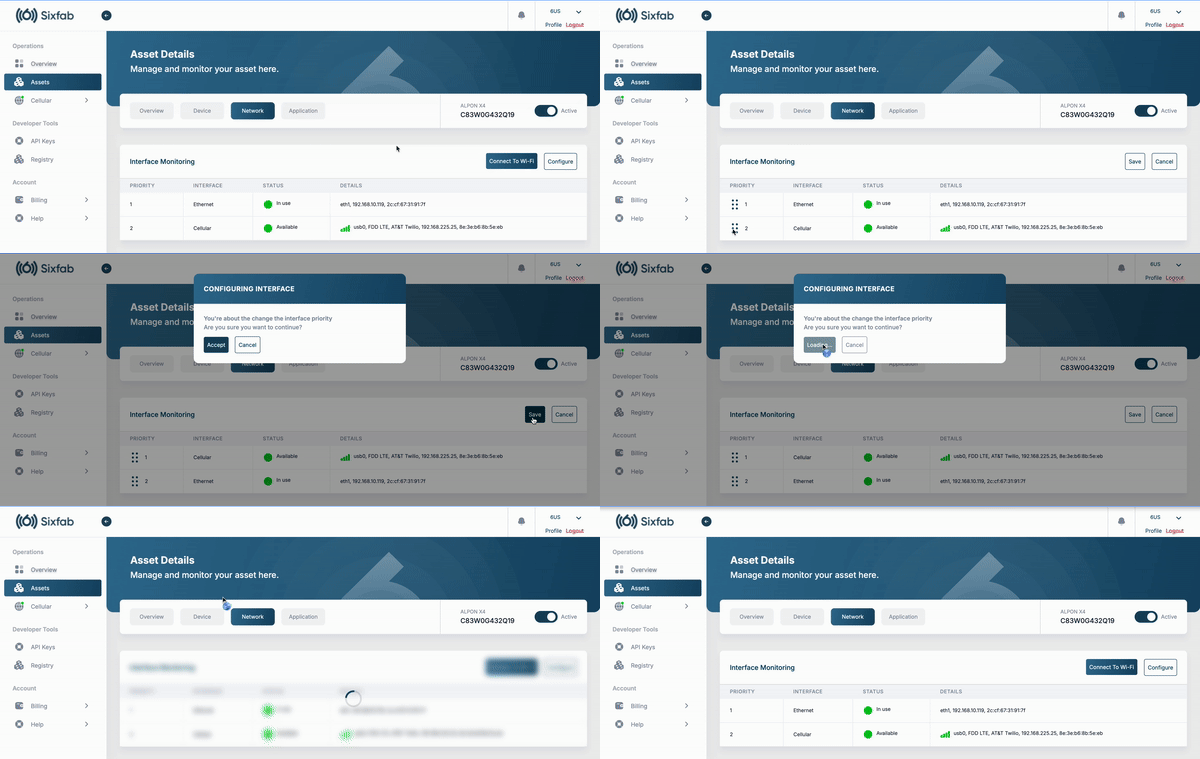
Interface priority
Each ALPON aggregates several uplinks — Ethernet, Wi-Fi, and cellular — and uses them in priority order. Drag and drop the rows on the Interface Monitoring card to reorder, click Configure, then Save.
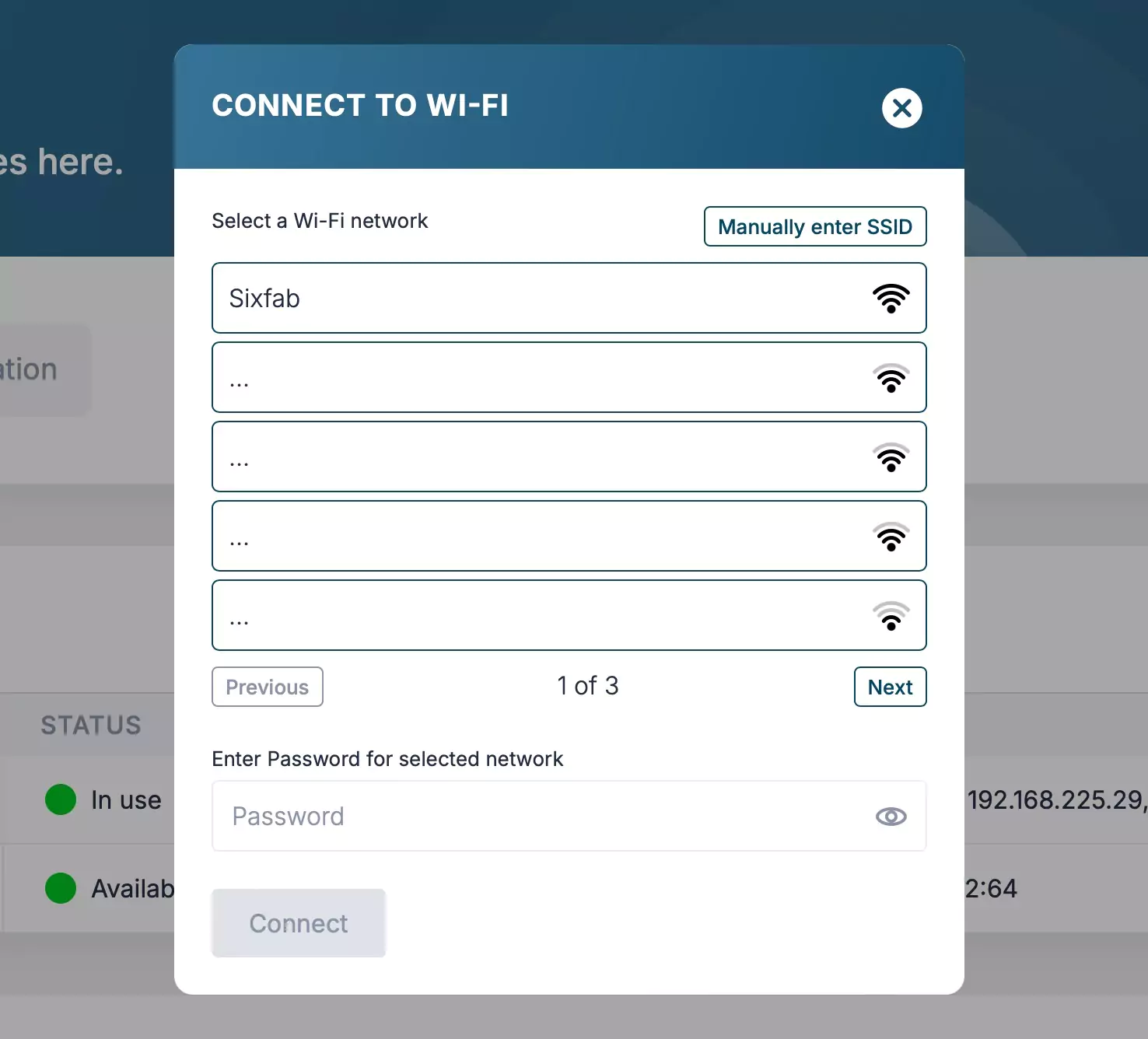
Connect to Wi-Fi
Pair an ALPON to a Wi-Fi network from Connect in four steps.
The device must show Online on the Connect dashboard. The Wi-Fi dialog stays disabled for devices that are offline or unreachable.
On the Network tab, click Connect to Wi-Fi. The dialog scans nearby networks automatically.
Choose a network from the scanned list and enter the password. For hidden networks, type the SSID and password manually.
Click Connect and wait for the join to finish. Once paired, the Network tab updates with the new SSID and IP details.
SIM data usage
The Network tab includes a per-hour data usage graph for the cellular interface, with download, upload, and total volumes. Wi-Fi and Ethernet usage is not counted.
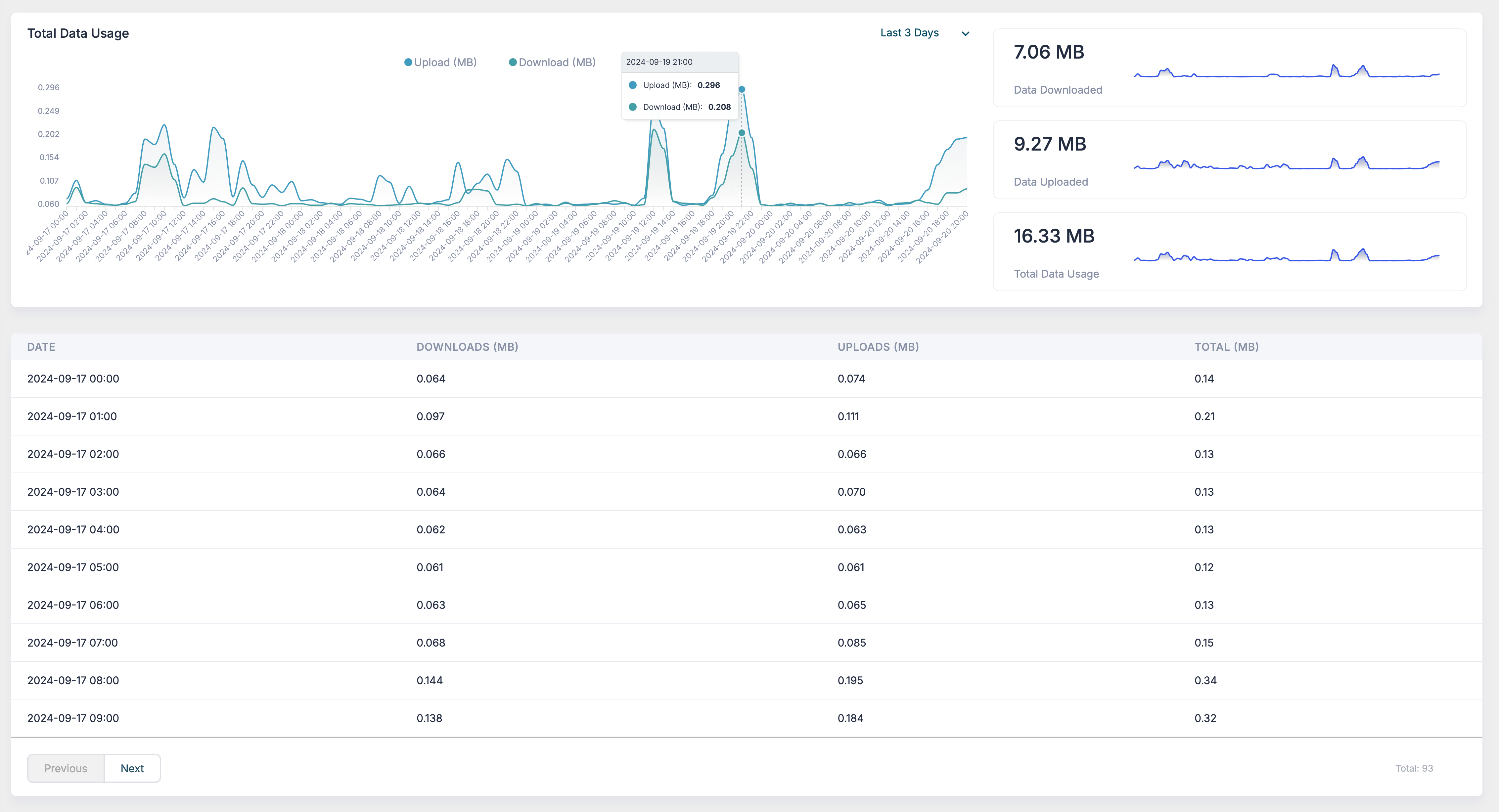
Data usage graphs only reflect Sixfab SIM consumption. If a third-party eSIM is the active profile, its volume is not displayed on the dashboard.
Container Registry
Sixfab provides a private Container Registry at cr.sixfab.io
for storing application images and deploying them to ALPON fleets. Push an image from your
build machine with docker login, docker tag, and
docker push, then pick it when you deploy from the
Applications tab. ALPON devices authenticate with the registry on their
own, so Docker credentials never have to be distributed per device.
- Your registry username is shown on the Registry page in Connect. Use Reset Password to set or rotate the password — it is displayed only once, so store it in a secrets manager.
- Repository and tag views show manifests, sizes, creation dates, and which devices run each tag. An image in use by a device is protected from deletion.
- Both ALPON X4 and ALPON X5 AI run ARM64: build for
linux/arm64or push a multi-arch manifest, otherwise the container fails at start withexec format error.
Storage and tag quotas, credential handling, and the complete push-and-deploy walkthrough live in Deploy applications on ALPON → Sixfab Container Registry.
Security & access
ALPON Cloud enforces tenant isolation, time-bounded access, and explicit consent for elevated operations. The security model spans device authentication, registry access, and team permissions.
Device authentication
- Each ALPON is provisioned with a unique device identity at the factory, and Connect binds that identity to the account the device is registered to.
- Remote terminal sessions require a valid access code or an authorized Connect session with the right permissions; requests that carry neither are rejected.
- Commands from Connect reach the device over an authenticated channel, and long-running operations stream their progress back to the dashboard.
Registry isolation
- A device can pull only from its owner's repositories and from official Sixfab images. Cross-tenant access is rejected at the registry layer.
- Devices pull using their own device identity rather than your registry password, so the credentials you use to push images are not distributed across the fleet.
Permission model
Connect permissions are granular and tag-aware: an account owner grants a team member read-only or management access, and can restrict that access to specific tags. A member's UI adapts to the permissions they hold, hiding controls for actions they cannot perform.
Sixfab support staff cannot self-assign access to your devices. Remote Support is enabled exclusively by the device owner from the Asset Detail page, expires on its own, and can be revoked at any time.
Billing & data pools
Sixfab uses a prepaid balance model with auto-recharge. Each active ALPON device incurs a recurring monthly fee, plus cellular data charged either Pay-As-You-Go or against a subscribed Data Pool. Inactive devices are not billed, and the same rates apply to ALPON X4 and ALPON X5 AI. Current prices are shown in the Billing section of Connect.
What you pay for
How auto-recharge works
The platform keeps your balance topped up automatically with a four-stage cycle: setup, check, top-up, and a decline fallback.
Under Billing, define a Minimum Balance Threshold (the floor) and an Auto-Charge Amount. These two values shape the cycle.
The platform checks account balances periodically and flags any that fell below the threshold since the last check.
When a balance drops below the threshold, the auto-charge amount is billed to the saved card and credited to the account immediately.
If the saved card is declined repeatedly, auto-charging pauses for safety. A successful manual top-up resumes the cycle.
Data Pools
One prepaid bucket. Many devices. Lower per-MB rate.
A Data Pool is a shared, prepaid data bucket used by every compatible device in your account. Subscribing prevents fallback to higher Pay-As-You-Go rates.
Each record runs 30 days from creation. Unused data does not roll over after expiry.
Next record buys itself only when a device uses data, never on a fixed calendar date.
Only networks in the pool are eligible. Other networks fall back to PAYG rates.
A pool record that is still completely unused may qualify for a refund. Check the refund terms in Connect, or contact Sixfab.
A negative balance triggers email warnings, and the account is suspended if the balance is not settled. A successful manual payment reactivates the SIMs and devices on the account. The current warning and suspension schedule is part of the billing terms in Connect — contact Sixfab if you need it in writing.
Updated 1 day ago