
Power & Mounting
Learn the power requirements and mounting options for the ALPON X4. Ensure stable operation in industrial environments.
ALPON X4 power & mounting
Power input specifications, consumption profiles, Restricted Mode behavior, and approved mounting hardware for the ALPON X4 industrial edge computer. Covers USB Type-C PD, the 9–30 V DC screw terminal, optional PoE+ on PoE-variant SKUs, and wall, DIN rail, and combined installation paths.
The ALPON X4 uses one power input at a time:
USB Type-C PD (15 V / 1.8 A, 27 W),
a 3-pin DC terminal (9–30 V rated; 12–30 V
for full peripheral functionality), or optional PoE+ on
ETH/G. Below 12 V, peripheral operation is restricted.
Typical consumption is 7–14 W, with a
27 W system peak. PoE+ delivers up to
25 W, so it cannot cover that simultaneous peak.
The enclosure supports wall and 35 mm DIN rail mounting through
2× 4 mm mounting holes on its base.
Power inputs
Choose USB-C PD, the DC screw terminal, or optional PoE+ on ETH/G. Connect only one power input at a time, following Safety & Compliance. Disconnect the active source before changing inputs; do not use simultaneous sources for failover.
USB-C PD
15 V · 27 W
PD profile · bundled adapter
Sink-only USB-PD port. Use the documented 15 V / 1.8 A (27 W) profile and stay within the peripheral power limits.
Screw terminal
9–30 V DC
Wide range · 27 W minimum
Reverse-polarity protection and a chassis ground pin. Use 12–30 V for full peripheral functionality; below 12 V operation is restricted.
PoE+
37–57 V · 25 W
802.3at · ETH/G only
One cable carries Gigabit data and power on ETH/G in PoE variants. The 25 W delivered budget is below the 27 W simultaneous system peak.
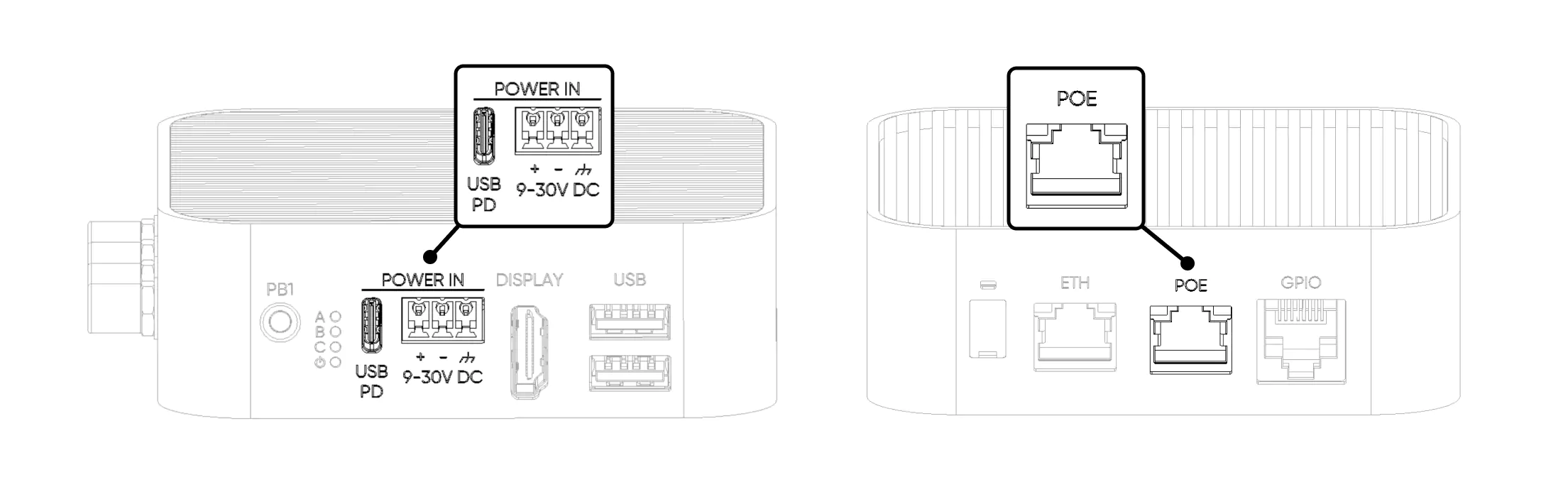
Do not connect USB-C power, DC terminal power, and PoE+ power simultaneously. Shut down and disconnect the active source before using another input.
USB Type-C PD input
The USB-C port is a sink-only USB-PD interface. It accepts power from a PD-capable adapter but does not provide USB data or power output during normal operation. Use the documented 15 V / 1.8 A (27 W) profile and observe the USB and GPIO peripheral power limits.
CYPD3177-24LQXQ
SW2 = Burn (image flashing mode).
Below 12 V, peripheral operation is restricted. A 12 V USB-PD profile is not established as a full-function X4 supply: use the documented 15 V profile. Do not rely on a 5 V or non-PD source for boot, connectivity, or peripheral operation.
Screw terminal block (9–30 V DC)
The 3-pin screw terminal is the recommended input for industrial deployments. Its rated range is 9–30 V DC, but full peripheral functionality requires 12–30 V at the terminal. Below 12 V, the system enters Restricted Mode. The input includes reverse-polarity protection and a dedicated chassis ground pin; verify +/− wiring before connecting power.
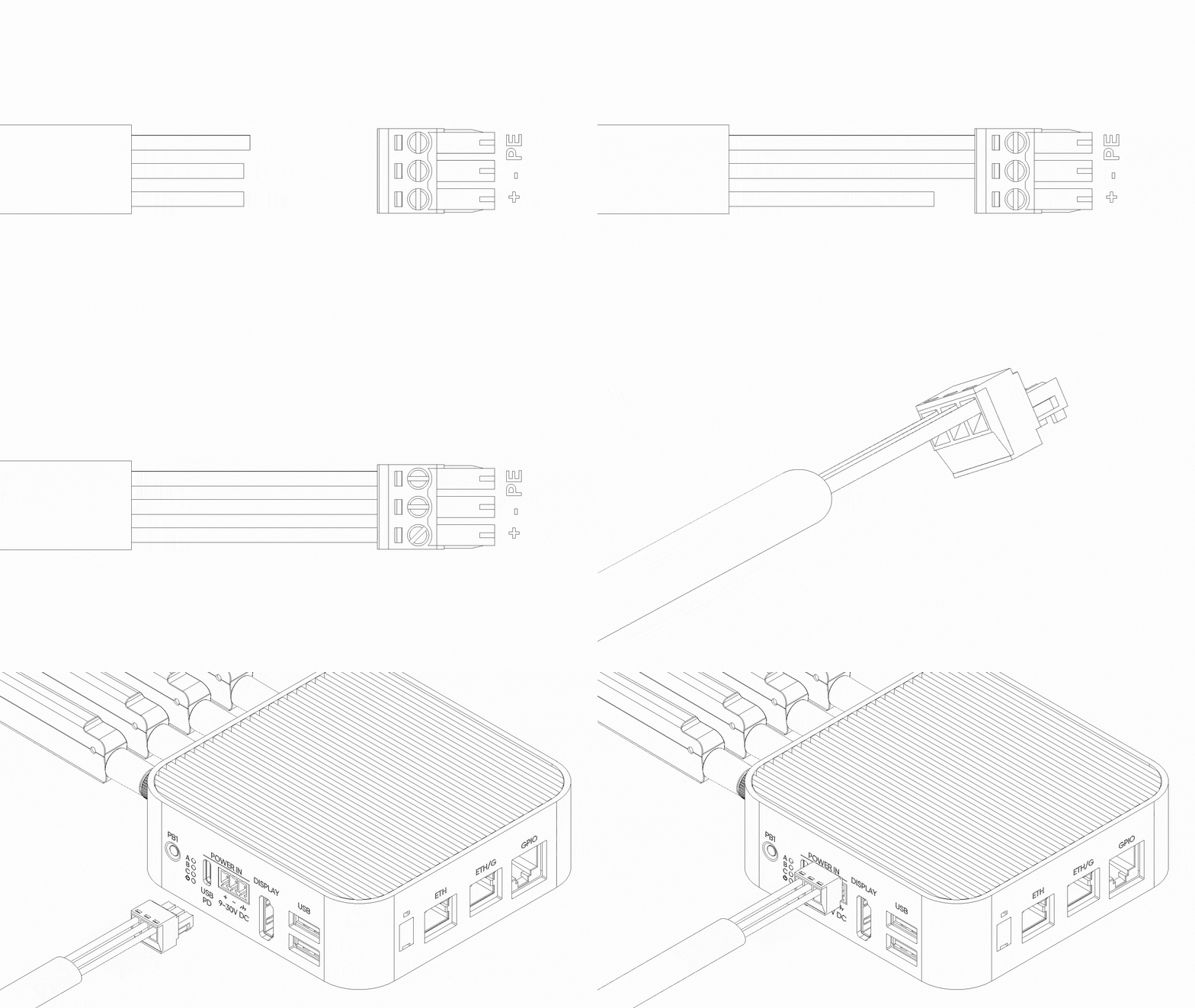
If the terminal block is powered below 12 V, the system enters Restricted Mode even though the input is nominally within the 9–30 V range. Use a 12 V or 24 V industrial supply for full functionality. For long DC cable runs, prefer a 24 V source to compensate for line drop.
Power over Ethernet (PoE+)
PoE+ is available only on PoE-variant SKUs and cannot be retrofitted — the PoE module is installed at manufacture. On those variants, ETH/G carries Gigabit Ethernet data and PoE+ power on the same cable. The ETH 100 Mbps port is data-only and cannot power the system.
ETH/G only (PoE variant)
Use an IEEE 802.3at Class 4 PSE with an adequate per-port and total switch power budget. The X4 PoE+ input delivers up to 25 W to the device, not a 25 W PSE rating. This cannot cover the 27 W simultaneous system peak: reduce peripheral load or switch to the documented DC / USB-C PD supply. Do not connect a second input to supplement PoE.
Restricted Mode
Below 12 V, the documented restricted state disables USB 2.0, the GPIO Add-on 5 V rail, HDMI output, and the programmable RGB LED. Core compute, LTE, and Ethernet are the subsystems retained in this state, but this is not a guarantee that an arbitrary low-voltage or undersized source can boot the device or keep it reachable. For full peripheral functionality, supply 12–30 V DC at the terminal or the documented 15 V / 1.8 A USB-C PD profile. Do not interpret the DC threshold as support for a 12 V USB-PD profile.
- CM4 compute module
- LTE Cat 4 modem
ETH/G(1 Gbps)ETH(100 Mbps)
- USB 2.0 ports
- GPIO Add-on port (5 V rail)
- HDMI display output
- Programmable RGB LED
Restore the documented 15 V USB-C PD source or a 12–30 V DC supply at the terminal, with only one input connected. Reboot and check peripheral operation. If a peripheral remains unavailable, continue with Troubleshooting rather than assuming low voltage is the only cause.
Power consumption
Measured subsystem power draw at idle, 50% load, and full load. A dash (–) indicates the subsystem draws negligible standalone power at that level. Values are approximate and depend on workload, connected peripherals, and ambient temperature.
| Subsystem | Idle (W) | 50% Load (W) | Full Load (W) |
|---|---|---|---|
| CM4 Compute Module | 3 | 5 | 7 |
| LTE Modem | 1 | 2 | 3 |
| Wi-Fi / Bluetooth | – | 1 | 2.5 |
| Voltage Regulators | 1 | 1 | 2 |
| GPIO Add-on 5 V rail | – | – | 5 |
| USB 2.0 Ports | – | – | 5 |
| HDMI Display Output | – | 0.5 | 1.5 |
| Programmable RGB LED | – | 0.5 | 1 |
| Total | 5 | 10 | 27 |
The documented system peak is 27 W. Select a DC or USB-C PD supply meeting its voltage and power requirements, and respect the individual USB and GPIO rail limits. PoE+ delivers up to 25 W, so reduce peripheral load or use DC / USB-C PD for a simultaneous 27 W workload. Do not assume automatic allocation between peripheral rails will make an over-budget load safe.
Mounting
The ALPON X4 enclosure includes 2× 4 mm mounting holes on its base for direct attachment to walls, panels, or DIN rail adapters. The fanless aluminum case doubles as a passive heatsink, so mounting orientation should preserve airflow across the top finned surface. Three mount kits are supported: wall, DIN rail, and a combined adapter.
Wall mount
Steel L-bracket fastened to the device with 2× M4 screws. Suits drywall, plywood, and sheet-metal surfaces.
DIN rail
Clip-on adapter for any 35 mm top-hat rail (EN 60715). Mounts the device into standard industrial racks.
Combined
Wall bracket layered with the DIN rail adapter. Switch between surface and rail mounting without re-fastening.
Keep the top cooling surface and surrounding airflow paths unobstructed. Avoid airtight cabinets for sustained workloads and allow room for cables and antennas without blocking the fins. A verified minimum enclosure clearance is not established here; obtain installation-specific mechanical and thermal guidance from Sixfab support before finalizing a cabinet layout.
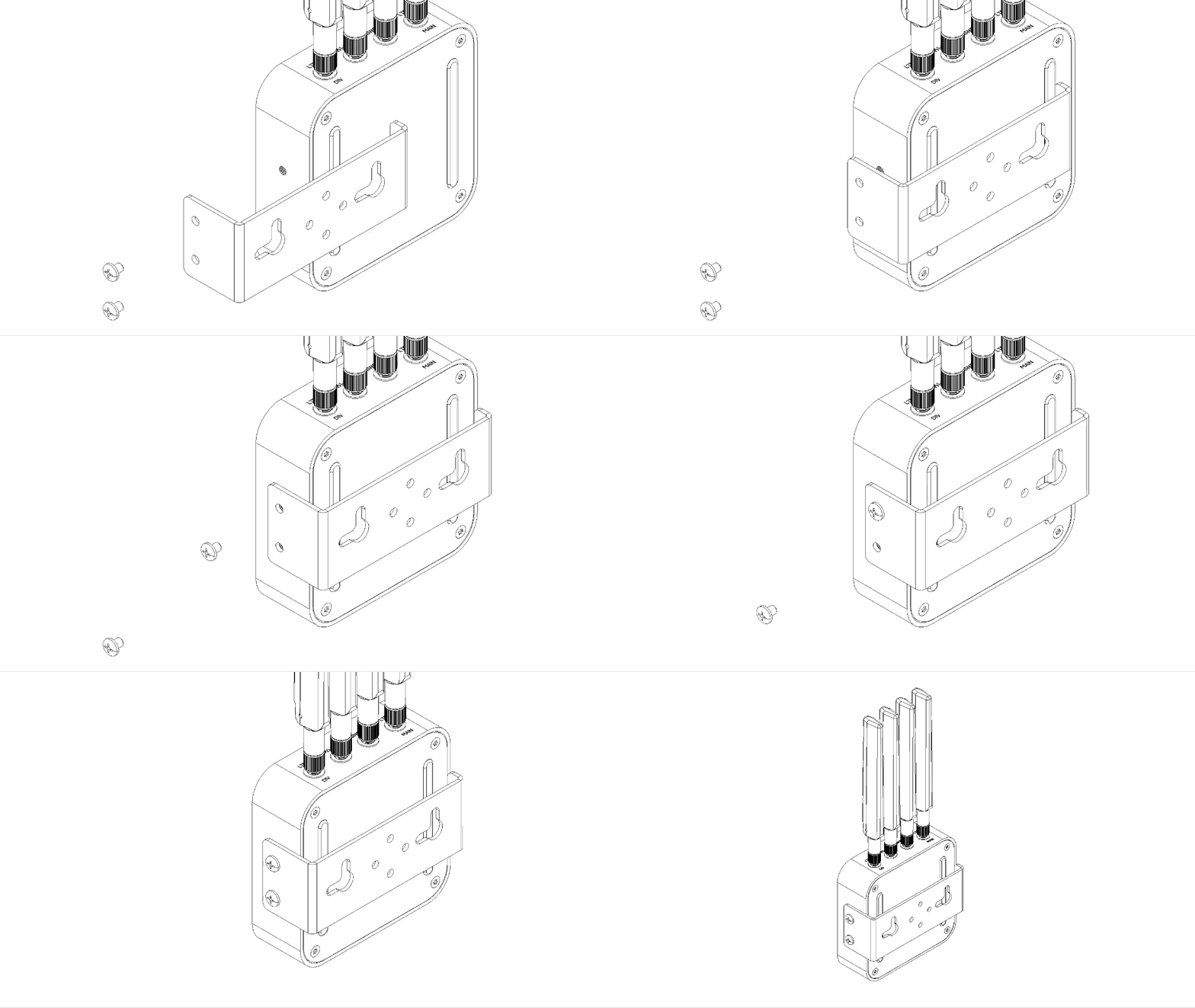
Wall mount installation
The wall mount kit ships with all fasteners required for drywall, plywood, or metal panel surfaces. Use the supplied wall plugs for masonry and the lock nuts for panel through-mounting.
Mark the wall
Position the bracket on the wall, mark the two screw hole locations with a pencil, and confirm the bracket is level.
Drill pilot holes
Drill the marked holes to match the supplied 8 mm wall plugs. For metal panels, drill to the screw diameter and omit plugs.
Insert the wall plugs
Press the plugs flush with the wall surface before driving screws.
Attach the bracket to the device
Align the bracket with the 2× 4 mm mounting holes on the base of the ALPON X4. Secure using the M4×6 mm Phillips pan-head screws.
Mount the assembly to the wall
Position the bracket over the wall plugs and drive the M5.5×45 mm sheet-metal screws until the assembly is flush and stable.
DIN rail installation
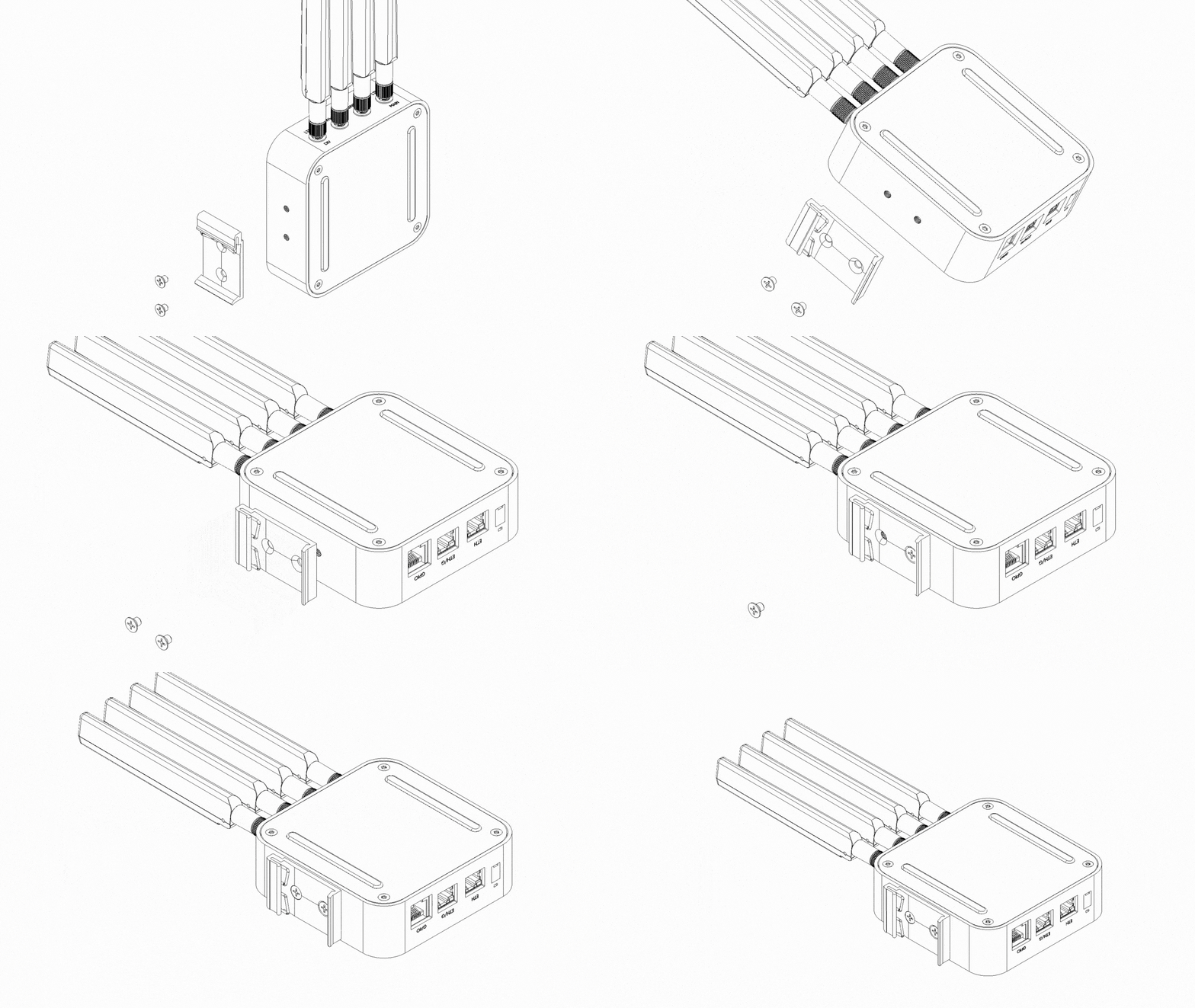
The DIN rail adapter attaches directly to the base of the ALPON X4 and snaps onto any standard 35 mm top-hat DIN rail (EN 60715). Use this method for control cabinets, industrial panels, or any rack where multiple ALPON X4 units need uniform spacing.
Align the adapter
Place the DIN rail adapter against the base of the ALPON X4 so its screw holes line up with the device's 2× 4 mm mounting holes.
Fasten the adapter
Drive the two M4×6 mm Phillips pan-head screws to secure the adapter to the enclosure.
Snap onto the rail
Hook the upper clip of the adapter over the top edge of the DIN rail, then press the lower section until it clicks into place.
Combined wall + DIN rail mount
The combined option layers the DIN rail adapter on top of the wall mount bracket. Useful when a deployment may migrate between surface-mounted and panel-mounted installations without replacing fasteners.
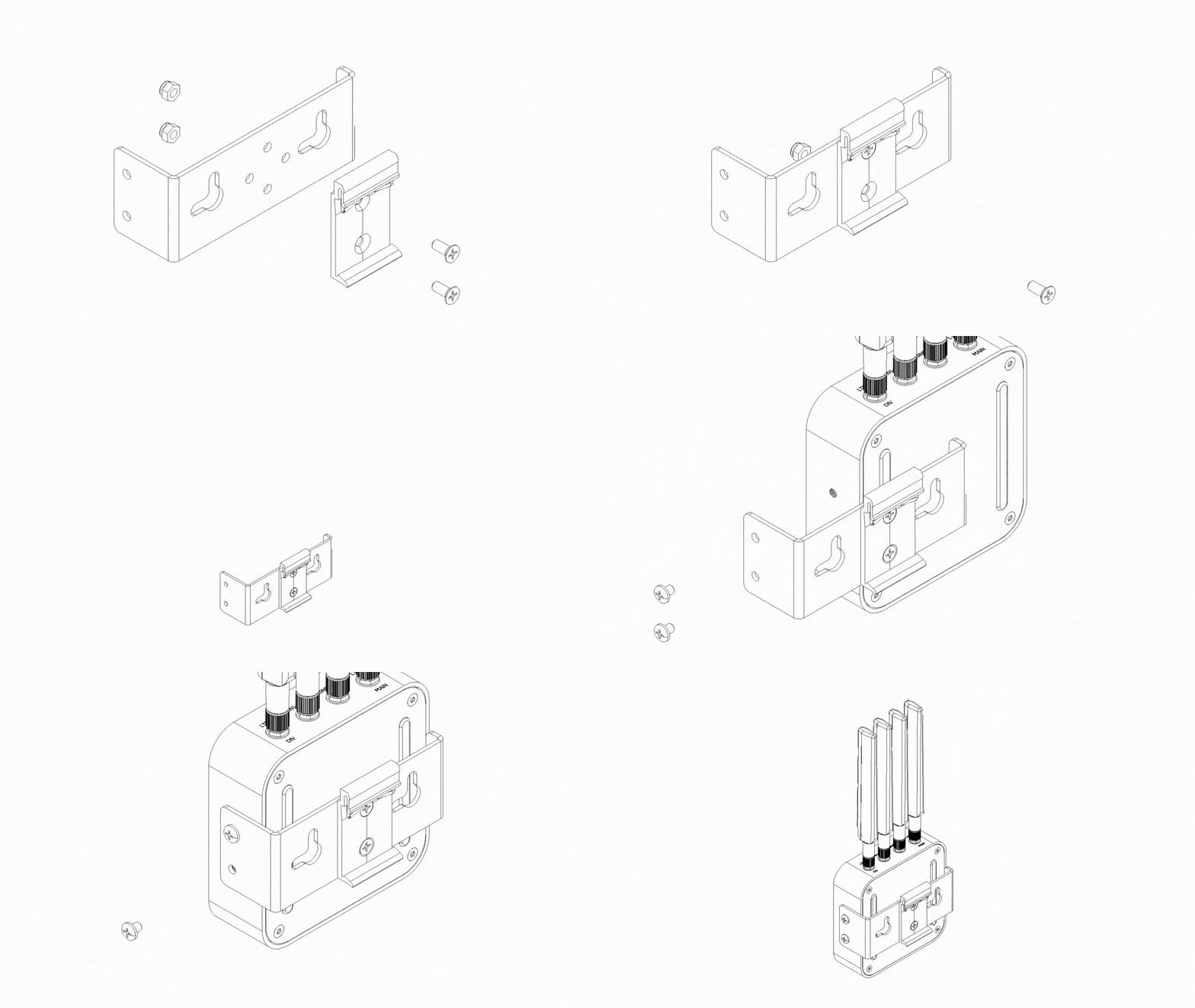
Install the wall mount first
Follow the wall mount steps above to attach the bracket to the device.
Layer the DIN rail adapter
Position the DIN rail adapter over the wall bracket and align its mounting holes.
Secure the assembly
Fasten the adapter to the wall bracket using the supplied screws.
Deploy on rail or wall
Slide the complete assembly onto a DIN rail, or fix the wall bracket backplate directly to a flat surface.
Mechanical envelope
Use Specifications — Mechanical & environmental as the source for enclosure dimensions, weight, and environmental ratings. Mounting hardware and installation steps are documented above.
For a custom bracket, confirm hole spacing, screw engagement, and cabinet clearance with Sixfab support before fabrication. The installation images are not dimensioned manufacturing drawings.
Power troubleshooting
Common power-related issues and resolution steps. If symptoms persist after these checks, contact Sixfab support with the cable type, supply voltage, and observed LED state.
The device does not power on
- Confirm the source matches the active input: 15 V / 1.8 A USB-C PD, 9–30 V DC at the terminal (12–30 V for full peripherals), or a compliant 802.3at Class 4 PSE for PoE+.
- On the screw terminal, verify polarity. Pin 2 is negative (−) and Pin 3 is positive (+). Reverse polarity will not damage the device but prevents power-on.
- For PoE+, confirm the cable is plugged into
ETH/G. TheETH100 Mbps port does not accept PoE. - Observe the Power LED. Flickering or loss of power can indicate an inadequate supply, cable loss, or another fault; check the source and connections rather than treating the LED as a measurement of available wattage.
The device boots but USB, GPIO, or HDMI are unavailable
- Check for Restricted Mode: below 12 V, USB, the GPIO 5 V rail, HDMI, and RGB operation are restricted. Confirm the supply and cable first; these symptoms can also have other causes.
- Replace the adapter with a PD-capable unit that negotiates at 15 V, or switch to the terminal block with a 12 V or 24 V industrial supply.
- Reboot the device after restoring a compliant source so the peripheral rails come back online.
The device resets under load
- Measure total draw when LTE, USB peripherals, and the GPIO 5 V rail are all active. If consumption approaches 27 W, swap cables and adapters for ones rated above the minimum.
- Check cable quality for USB-C. Non-compliant USB-C cables can drop voltage under sustained load even with a capable adapter.
- For PoE+, verify the PSE budget and cable condition. Keep device demand within the 25 W delivered limit; reduce peripheral load or switch to DC / USB-C PD if the workload approaches the 27 W simultaneous system peak.
Updated 1 day ago