
Quickstart
Set up the ALPON X4 edge computer with step-by-step installation and configuration. Get your device ready for industrial deployment.
Bring an ALPON X4 online in 5 steps
Register the device in ALPON Cloud (accessed through Sixfab Connect), connect power and Ethernet, activate the asset, verify the LEDs, then open a browser-based remote terminal from ALPON Cloud. Five steps, one device, no local toolchain. Built on Raspberry Pi.
Five steps. Register using the device QR code or serial number at ALPON Cloud, connect the included 15 V, 1.8 A (27 W) USB-C PD adapter, and connect Ethernet to ETH/G (1 Gbps). Activate the asset in its detail page, verify the Connection LED and cloud status, then open the remote terminal. Boot and provisioning time depend on network conditions.
Before you start
Have these on hand before powering on. The box includes the device, four external antennas
(2× LTE, 1× GNSS, 1× Wi-Fi) labeled L,
L, G, and W, and the 27 W
USB-C PD adapter with four interchangeable plug heads
(US / EU / UK / AU). The antennas screw onto the matching connectors on
the back panel and must be attached before applying power.
L, L, G, and W; Wi-Fi uses RP-SMA. Screw-terminal block for DC input ships in the box.
L for LTE Main and LTE Diversity, one G for GNSS/GPS, one W for Wi-Fi/Bluetooth. Hand-tighten only — no tools required. Attach all four before applying power.
The procedure
Five steps. The first registers the device to your account; the next three bring it up on power and the network; the fifth opens the remote terminal so you can run commands and deploy workloads. Each step's commands are self-contained, so copy them in order.
Register the device in ALPON Cloud
Registration links the device's serial number to your account. Use the QR code or serial number on the bottom label. The documented device-registration flow uses either of these identifiers; an eSIM provider's activation code is for installing a separate eSIM profile, not a substitute for the device serial number.
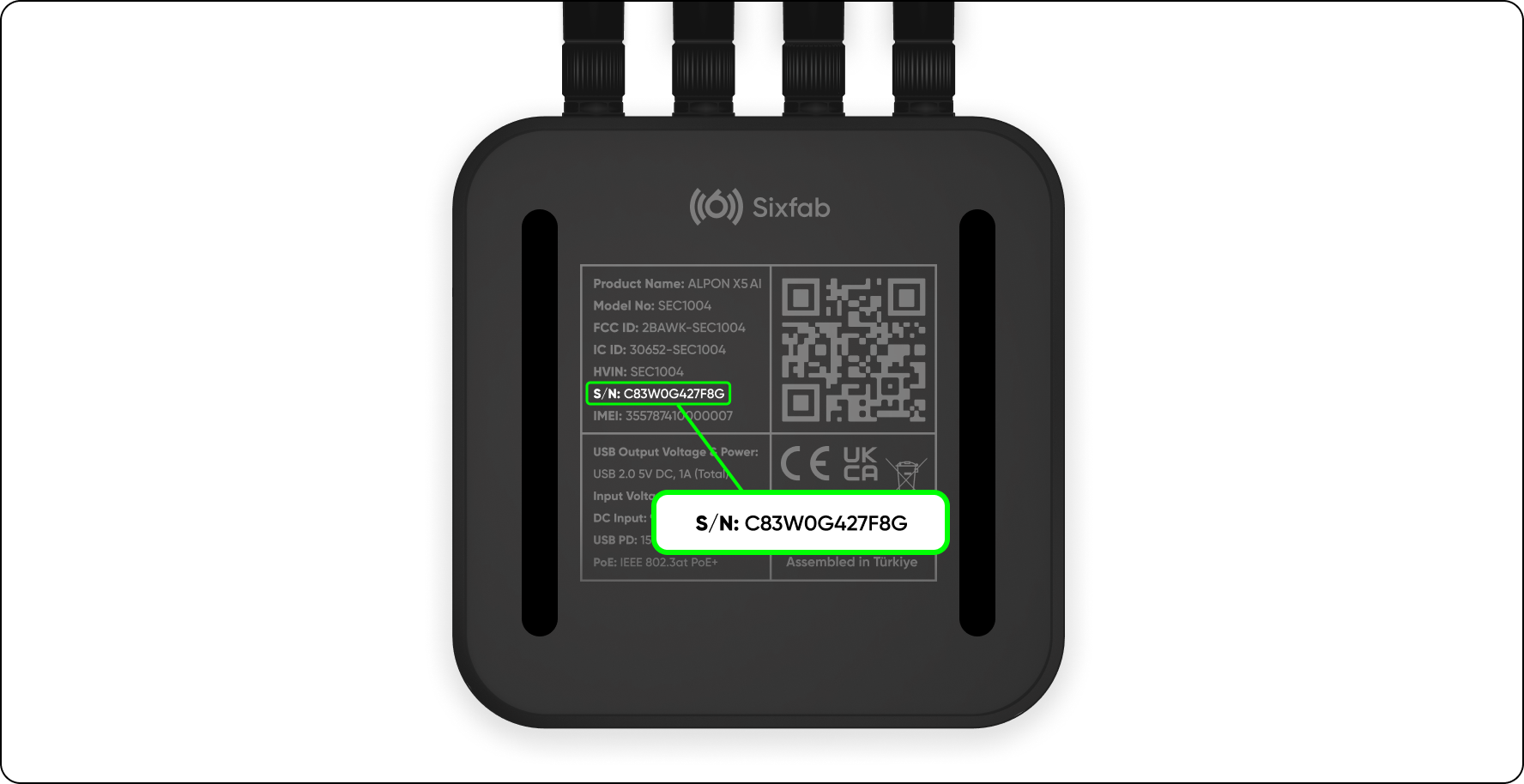
- Find the QR code on the device's bottom label.
- Scan it with your phone camera.
- ALPON Cloud opens; log in.
- The device auto-registers to your account.
- Open ALPON Cloud.
- Go to Assets, click Register Asset.
- Enter the serial number from the bottom label.
- Confirm to register.
You can register before applying power. After connecting power and Ethernet, complete the required asset activation in Step 4.
Connect power
Screw the two LTE antennas onto the L connectors,
the GNSS antenna onto the G connector, and the Wi-Fi
antenna onto the W connector on the back panel.
Hand-tighten only — no tools required. Connecting or disconnecting
antennas on a powered LTE radio can damage the cellular module,
so always work with the device unpowered through this step.
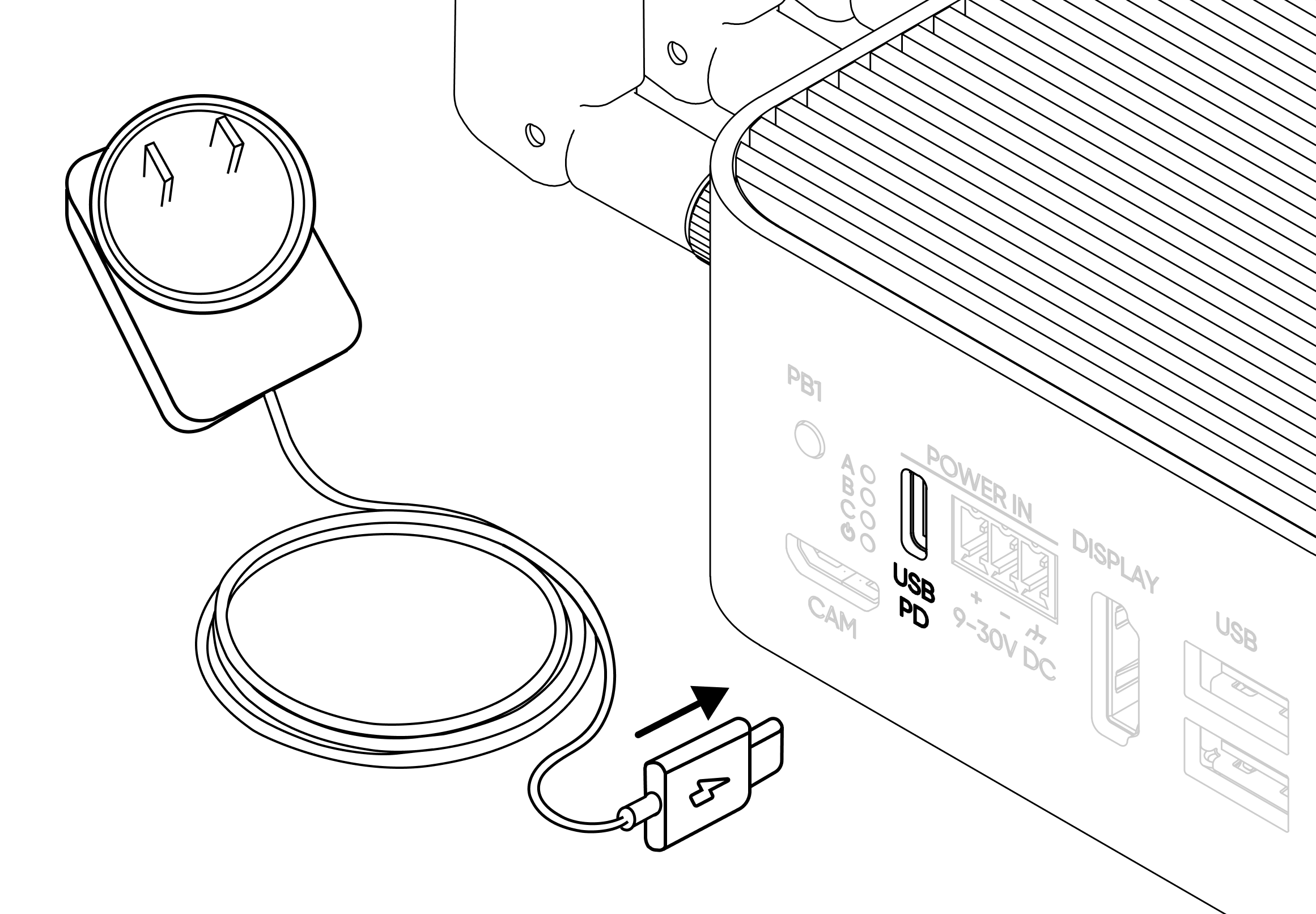
Use one power input at a time. For first boot, use the included 15 V, 1.8 A (27 W) USB-C PD adapter. The DC terminal is rated 9–30 V, with full peripheral functionality at 12–30 V and restricted operation below 12 V. Optional PoE+ delivers up to 25 W, which cannot cover the 27 W simultaneous system peak: reduce peripheral load or use DC/PD. See Power & Mounting.
USB-C PD
Included 27 W adapter, 15 V DC × 1.8 A
Screw terminal
9–30 V DC rated; 12–30 V for full functionality
PoE+ (variant)
IEEE 802.3at on ETH/G; up to 25 W delivered
- Slide the regional plug head onto the USB-C PD adapter until it clicks.
- Connect the adapter cable to the device's USB-C port.
- Plug the adapter into mains power.
- Confirm the Power LED turns solid white.
A USB-C connector alone does not establish compatibility. Use a PD supply supporting 15 V at 1.8 A (27 W). For full peripheral functionality from DC, use 12–30 V. Disconnect the previous supply before changing power inputs.
Connect to a network
Use ETH/G (1 Gbps) for the first-boot Ethernet connection. This port carries data and, on PoE-enabled variants, PoE+ power. The ETH (100 Mbps) port is data-only. These labels identify the physical ports; WAN/LAN roles depend on network configuration.
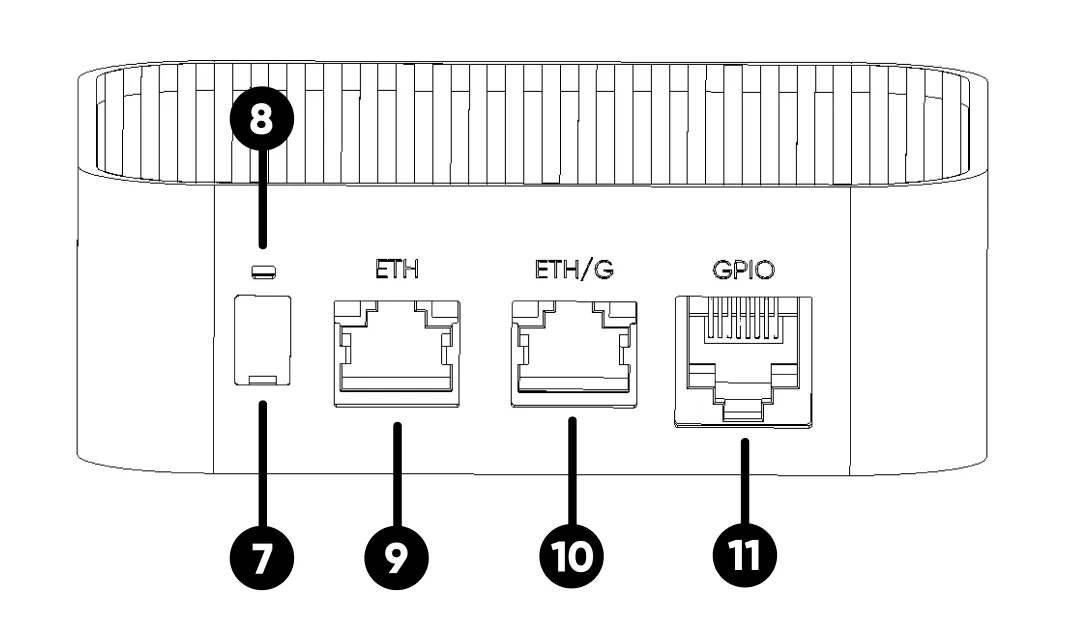
- Connect an Ethernet cable from an internet-connected router or switch to ETH/G (1 Gbps). If using USB-C or DC power, use a non-PoE connection so only one input supplies power.
- The device requests an IP address via DHCP; the network must provide DHCP and internet access.
- Keep Ethernet connected while completing activation in Step 4. Cellular connectivity requires an active asset, a provisioned eSIM profile, and coverage.
The third RJ45-shaped connector on the device is the GPIO Add-on port. It carries GPIO signals, a 5 V rail, and GND — not Ethernet or PoE. Never connect an Ethernet or PoE cable to it: doing so can cause permanent hardware damage.
You should have attached the four included antennas in Step 2 before applying power. For deployments with weak signal, an optional outdoor IP67 combination antenna is available as an upgrade; see Antenna connectors.
Activate the asset and verify connectivity
- Open ALPON Cloud, go to Assets, and select Details for the registered device.
- With the device powered and connected to Ethernet, set the Active / Inactive toggle at the top right of the asset detail page to Active. Registration alone does not activate the asset. The account must meet the activation and balance requirements.
- Check the Connection LED and the asset's connectivity status before opening the remote terminal. Activation and network connectivity are separate states.
Boot and provisioning time vary. Use the indicators below rather than a fixed timer.
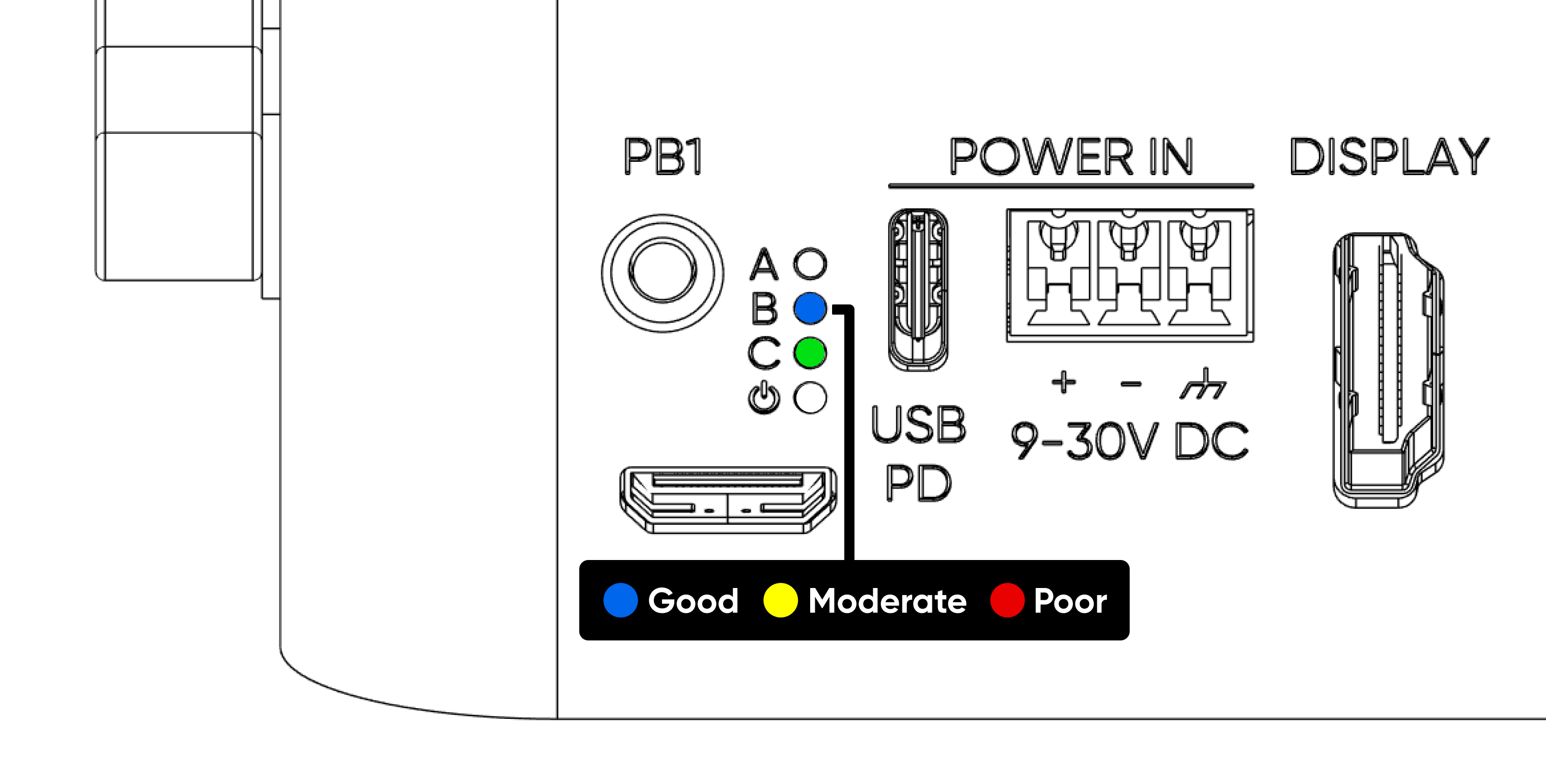
The asset is Active, the Connection LED is green,
and ALPON Cloud reports the device as connected or Online.
Use ETH/G (1 Gbps) with an internet-connected network. Check the asset's connectivity status; an Ethernet link alone does not confirm cloud reachability.
Access the device
Open ALPON Cloud and pick the device from your asset list. From here you can run commands, monitor health, and deploy container workloads — no local SSH client needed.
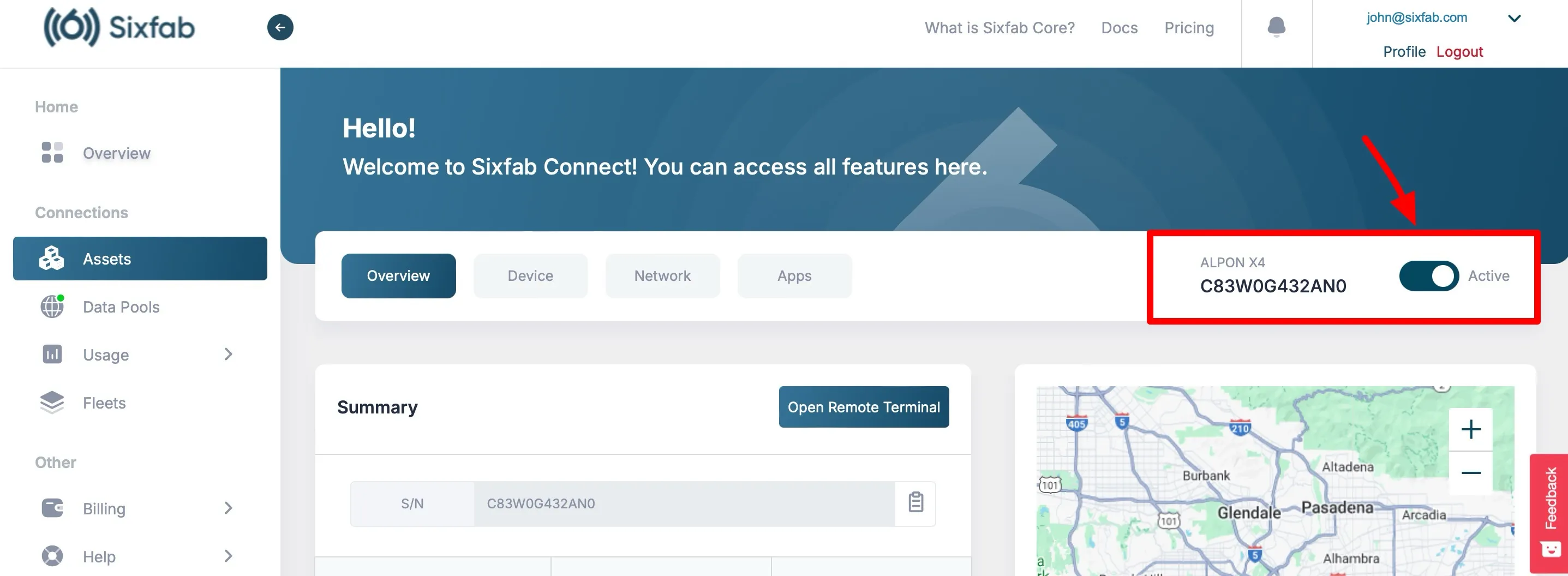
From the dashboard you can:
- Open a browser-based remote terminal — no local SSH client needed.
- Monitor device health: CPU, memory, temperature, network, container state.
- Deploy ARM64 container workloads from Docker Hub or Sixfab Container Registry to the device or to your fleet.
- Schedule OTA updates for firmware and applications.
- Manage eSIM profiles and configure network failover.
For local SSH or HDMI console access, the default user is alpon
with password sixfab. Change it on first login with
passwd. See ALPON X4 OS
for password changes, user setup, local Wi-Fi, and OS updates.
First-boot troubleshooting
Open the question that matches what you see. For further diagnostics, use the Troubleshooting guide.
The Power LED does not turn on
Confirm the supply supports the documented 15 V, 1.8 A (27 W) USB-C PD profile. Alternatively, disconnect USB-C and use the DC terminal: 9–30 V rated, 12–30 V for full peripheral functionality. Use only one power input.
The Connection LED stays off
The device is disconnected from ALPON Cloud. Confirm registration and activation in Step 4, then check Ethernet on ETH/G (1 Gbps) and internet access. For cellular, check the eSIM profile, service availability, and antenna connections with power removed before adjusting hardware.
The QR code does not scan
Use the Manual registration path in Step 1. Type the serial number from the bottom label into ALPON Cloud Assets → Register Asset.
The device shows Offline in ALPON Cloud
Confirm the asset is registered and Active, then check DHCP and internet access on ETH/G (1 Gbps). Offline status can also reflect cloud-service or agent connectivity problems, not just loss of a physical network link. See the Troubleshooting guide.
Ethernet is plugged in but the device still reports no network
Confirm the cable is in ETH/G (1 Gbps), the connector clicks into place, and the router or switch provides DHCP and internet access. ETH (100 Mbps) is a separate data-only port, not a fixed downstream role. Never plug Ethernet into the GPIO Add-on port: it is not Ethernet or PoE.
I cannot find the activation code or serial number
The device serial number and QR code are on the bottom label. The documented registration procedure does not require a separate device activation code. A code for adding a third-party eSIM profile comes from the eSIM provider; see ALPON Cloud. If the device label is unreadable or the registration screen requests information you do not have, contact Sixfab support with your order number.
Where to next
The device is powered, the Connection LED is green, and the dashboard shows it connected. Pick the next step based on what you want to build: deploy containers, configure user access and Wi-Fi, or manage a fleet.
Updated 5 days ago