
InitialState Integration
Stream device data from ALPON X5 AI or ALPON X4 to an InitialState dashboard: create a stream bucket, build a small Python ingestor container, push it to the Sixfab Container Registry, and deploy it through ALPON Cloud.
Integrate InitialState with ALPON
Stream live data from your ALPON X5 AI or ALPON X4 into an InitialState dashboard. This guide creates a stream bucket, packages a small Python data ingestor as a container, pushes it to the Sixfab Container Registry, and deploys it through ALPON Cloud with the bucket and access keys as environment variables.
Create a stream bucket in InitialState and copy its Bucket Key and
Access Key. Build a Python container that calls the
https://groker.init.st/api/events endpoint, push it to your Sixfab Container
Registry, then deploy it from the Applications → Deploy panel on
ALPON Cloud with the ACCESS_KEY, BUCKET_KEY, and
DATA_PREFIX environment variables set. Live tiles appear in the bucket as soon as the container
starts on your ALPON X5 AI or ALPON X4.
Overview
InitialState is a real-time IoT visualization platform that lets you stream data into customizable dashboards. On an ALPON X5 AI or ALPON X4 the ingestor runs as a container deployed through ALPON Cloud, so device data is sent and monitored continuously without touching the device by hand.
This guide builds a simple InitialState data ingestion container and deploys it on the ALPON through ALPON Cloud. The steps are identical on ALPON X4 and ALPON X5 AI. For more details on InitialState, visit the InitialState documentation.
- ALPON device: an ALPON X5 AI or ALPON X4, powered on, connected to ALPON Cloud, and operational.
- ALPON Cloud account: access to ALPON Cloud for container management.
- Docker installed: on your development machine, for building the container image.
- InitialState account: an InitialState account to create data buckets and view your dashboards.
-
1
Create an InitialState bucket
Before deploying the container, set up a data bucket in InitialState to receive your data. Log in to your InitialState account, then from the dashboard click the plus (+) icon in the top left to create a new data stream bucket.
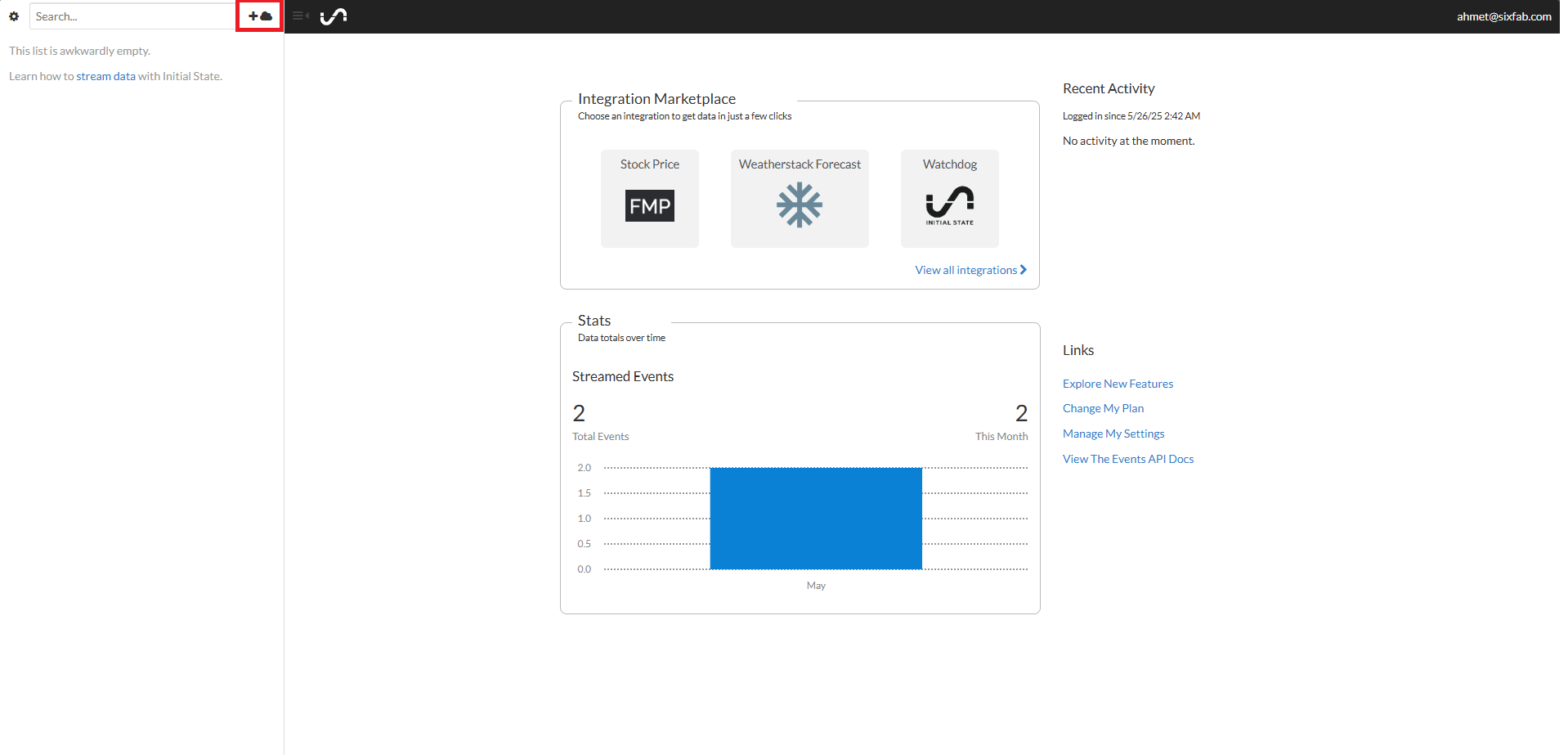
Creating a new stream bucket from the InitialState dashboard. In the New Stream Bucket dialog, enter a name (for example Sample Stream Bucket) and click Create.
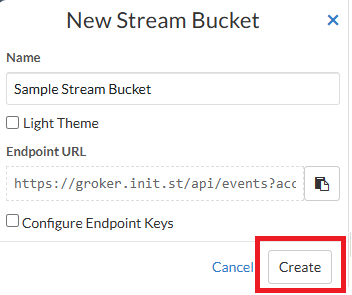
The New Stream Bucket dialog. Your new bucket appears in the left panel. Click the gear icon next to it to open its settings.
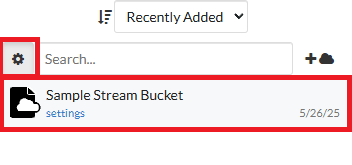
Opening the bucket settings from the left panel. In the Data tab of the settings window, copy the Bucket Key and Access Key. You will need both later as environment variables.
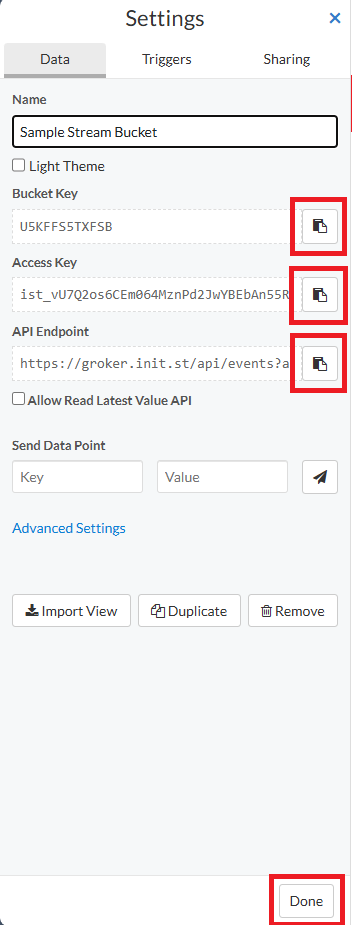
The Bucket Key and Access Key in the Data tab of the bucket settings. -
2
Build the container
You will now create a container that sends simulated IoT data to your InitialState bucket. It consists of a
Dockerfileand a singlemain.pyscript.Create the Dockerfile
DockerfileFROM python:3.11-slim WORKDIR /app COPY main.py . RUN pip install --no-cache-dir requests CMD ["python", "main.py"]
Create main.py (data ingestion logic)
The script reads the
ACCESS_KEY,BUCKET_KEY, andDATA_PREFIXenvironment variables, then sends a random reading to the InitialState events API every 5 seconds.python · main.pyimport os import requests import time import random from datetime import datetime url_base = "https://groker.init.st/api/events" # Get environment variables access_key = os.getenv('ACCESS_KEY') bucket_key = os.getenv('BUCKET_KEY') data_prefix = os.getenv('DATA_PREFIX') if not access_key or not bucket_key or not data_prefix: raise ValueError("ACCESS_KEY, BUCKET_KEY, and DATA_PREFIX environment variables must be set.") data_types = ['temp', 'humidity', 'pressure', 'motion', 'light'] print("Starting data transmission to InitialState...") try: while True: # Select a random data type and generate a random ID for variety data_type = random.choice(data_types) random_id = random.randint(1, 100) value = random.randint(10, 500) # Random value for the data point # Construct the data stream name using the prefix, type, and ID data_name = f"{data_prefix}_{data_type}_{random_id}" # Manually create the query string for the GET request full_url = ( f"{url_base}?accessKey={access_key}" f"&bucketKey={bucket_key}" f"&{data_name}={value}" ) response = requests.get(full_url) print(f"Attempting to send: {full_url}") print(f"[{datetime.now().strftime('%H:%M:%S')}] Sent: {data_name}={value} | Status: {response.status_code} {response.reason}") time.sleep(5) # Wait for 5 seconds before sending the next data point except KeyboardInterrupt: print("\ Data transmission stopped by user.") except Exception as e: print(f"An error occurred: {e}")Build the image
Open a terminal on your development machine and navigate to the folder containing your
Dockerfileandmain.py. Build the image for the data ingestor; build forlinux/arm64, which is the architecture of the ALPON.bash · build the imagecd <your-folder-containing-Dockerfile-and-main.py> docker buildx build --platform linux/arm64 --load -t initialstate-ingestor . -
3
Push the image to ALPON Cloud
Log in to ALPON Cloud and open the Sixfab Container Registry page. Click + Add Container and follow the prompts to push the
initialstate-ingestorimage to the Sixfab Container Registry.Deploy ApplicationsVisit the Deploy Applications page for all the necessary details on pushing your container image to the Sixfab Container Registry.
-
4
Deploy the container on ALPON
Go to the Applications section of your asset on ALPON Cloud and click + Deploy. In the Deploy Container window, use these settings:
Container NameinitialstateImageTheinitialstate-ingestorimage and tag you pushed to the Sixfab Container Registry.EnvironmentClick + Add More in the environment section and add the three variables in the table below.Key Value ACCESS_KEYYOUR_INITIALSTATE_ACCESS_KEYBUCKET_KEYYOUR_INITIALSTATE_BUCKET_KEYDATA_PREFIXalpon_device(or your desired prefix)Use the Access Key and Bucket Key you copied in step 1. Click + Deploy to launch the ingestor on the device.
-
5
Verify data in InitialState
Open your InitialState dashboard and select the bucket you created (for example Sample Stream Bucket). You should see live tiles updating with values such as
alpon_device_temp_42,alpon_device_humidity_7, and so on, generated by your ALPON.If nothing appears, confirm the container is running in the Applications section and that the
ACCESS_KEYandBUCKET_KEYvalues match the keys shown in the bucket's Data tab.
- The
initialstatecontainer shows as running in the Applications section. - The bucket in InitialState shows live tiles named with your
DATA_PREFIX, updating every 5 seconds.
Your ALPON is now integrated with InitialState. With this setup you can monitor IoT data streams in real time, build interactive dashboards, and analyze incoming device data.
Production image policy: Replace floating
:latestreferences with a reviewed immutable tag or digest, then record the selected version for rollback.
Updated 15 days ago