
Quickstart
Set up the ALPON X5 AI edge computer with this step-by-step quick start guide. Learn how to install hardware and configure the system for edge AI deployment.
Bring an ALPON X5 AI online in 5 steps
Register the device in Sixfab Connect, connect power, plug in a network, verify the LEDs, then open a browser-based remote terminal from ALPON Cloud. Five steps, one device, no local toolchain. Intelligented by DEEPX. Built on Raspberry Pi.
Five steps, about 5 minutes.
Register the device in Sixfab Connect using its QR code or
serial number, connect power via the included 27 W USB-C PD
adapter (or the 12–24 V DC screw terminal, or PoE+), plug in Ethernet for
first-time provisioning, watch the front-panel LEDs settle, then open a
browser-based remote terminal from ALPON Cloud. The NPU is
reachable as soon as the device shows Online.
Before you start
Have these on hand before powering on. Everything except an ALPON Cloud
account ships in the box: the device, four external antennas
(2× LTE, 1× GNSS, 1× Wi-Fi) labeled L, L,
G, and W, and the 27 W USB-C PD
adapter with four interchangeable plug heads (US / EU / UK / AU). The
antennas screw onto the matching connectors on the back panel and must
be attached before applying power.
L, L, G, and W for the matching antennas.
L for LTE Main and LTE Diversity, one G for GNSS/GPS, one W for Wi-Fi/Bluetooth. Hand-tighten only — no tools required. Attach all four before applying power.
The procedure
Five steps. The first registers the device to your account; the next three bring it up on power and the network; the fifth opens the remote terminal and confirms the DEEPX NPU is reachable. Each step's commands are self-contained, so copy them in order.
Register the device in Sixfab Connect
Registering links the device's serial number to your account so ALPON Cloud can reach it the moment it comes online. There are two paths to the same result — scanning the QR code is faster, but manual registration works just as well if you only have the device in front of you.
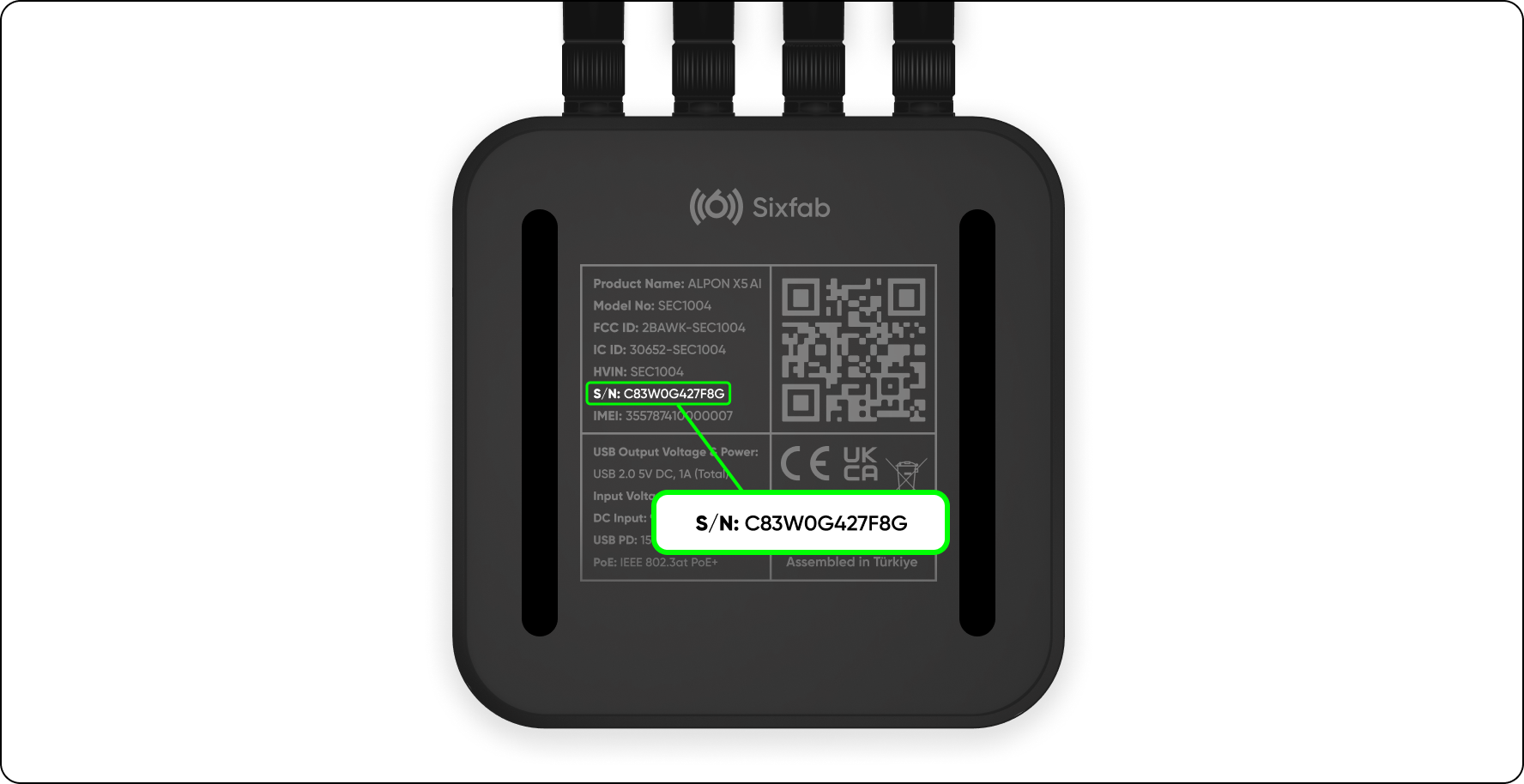
- Find the QR code on the device's bottom label.
- Scan it with your phone camera.
- Sixfab Connect opens; log in.
- The device auto-registers to your account.
- Open Sixfab Connect.
- Go to Assets, click Register Asset.
- Enter the serial number from the bottom label.
- Confirm to register.
Registering before applying power is fully supported. The device finishes the handshake automatically once it reaches the network in Step 3.
Connect power
Screw the two LTE antennas onto the L connectors,
the GNSS antenna onto the G connector, and the Wi-Fi
antenna onto the W connector on the back panel.
Hand-tighten only — no tools required. The cellular and GNSS
radios will not register a network or fix without their antennas
connected, and running the device unpowered through this step is
the safest order.
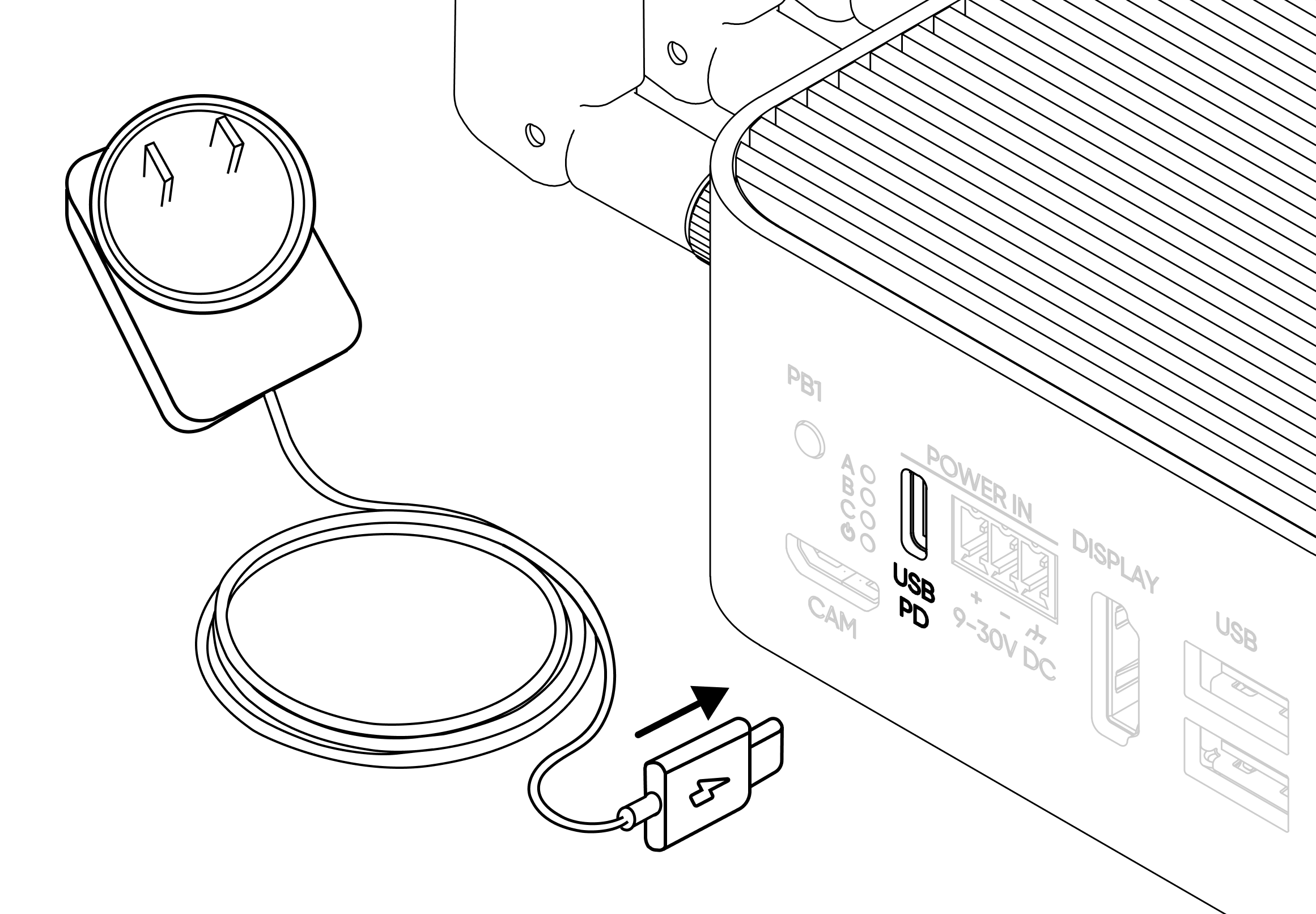
The ALPON X5 AI accepts three power inputs. The included 27 W USB-C PD adapter (15 V / 1.8 A, a supported configuration) is the fastest path for first boot; a 45 W USB-C PD adapter is recommended for sustained AI load. Slide the correct regional plug head onto the adapter body before use; the screw terminal (12–24 V DC, 27 W minimum) and PoE+ inputs remain available for industrial wiring and single-cable installs.
USB-C PD
Included 27 W adapter (15 V × 1.8 A) · 12 V or 15 V PD · 45 W recommended for sustained AI load
Screw terminal
12–24 V DC, 27 W minimum, for industrial wiring
PoE+ (optional)
IEEE 802.3at, up to 25 W, single-cable install
- Slide the regional plug head onto the USB-C PD adapter until it clicks.
- Connect the adapter cable to the device's USB-C port.
- Plug the adapter into mains power.
- The Power LED turns solid white.
Standard USB-C phone chargers may not negotiate the required voltage and can trigger under-voltage warnings. If the Power LED does not turn on, confirm you are using the included 27 W USB-C PD adapter, or wire a 12–24 V DC supply into the screw terminal.
Connect to a network
The ALPON X5 AI offers two Gigabit Ethernet ports and built-in cellular
(eSIM, eUICC). For first boot, plug an Ethernet cable into ETH 0.
The integrated eSIM activates in parallel and takes over if Ethernet is removed
— you can keep both paths live for failover, or rely on cellular alone in
the field.
- Connect an Ethernet cable from your router or switch to
ETH 0. - The device requests an IP via DHCP. No further configuration is required.
- If Ethernet is unavailable, the eSIM negotiates an LTE Cat 4 connection automatically.
You should have attached the four included antennas in Step 2 before applying power. For deployments with weak signal, an optional 3-metre outdoor IP67 combination antenna is available as an upgrade; see Antenna connectors.
Verify the device is online
Watch the front-panel LEDs to confirm power, network, and cloud reachability before opening the remote terminal. The full LED legend below covers the states you'll see during provisioning.
The Status LED is solid green and the device shows
Online in your Sixfab Connect dashboard.
Access the device and confirm the NPU
Open Sixfab Connect and pick the device from your asset list. From here you can run commands, monitor health, and deploy container workloads — no local SSH client needed.
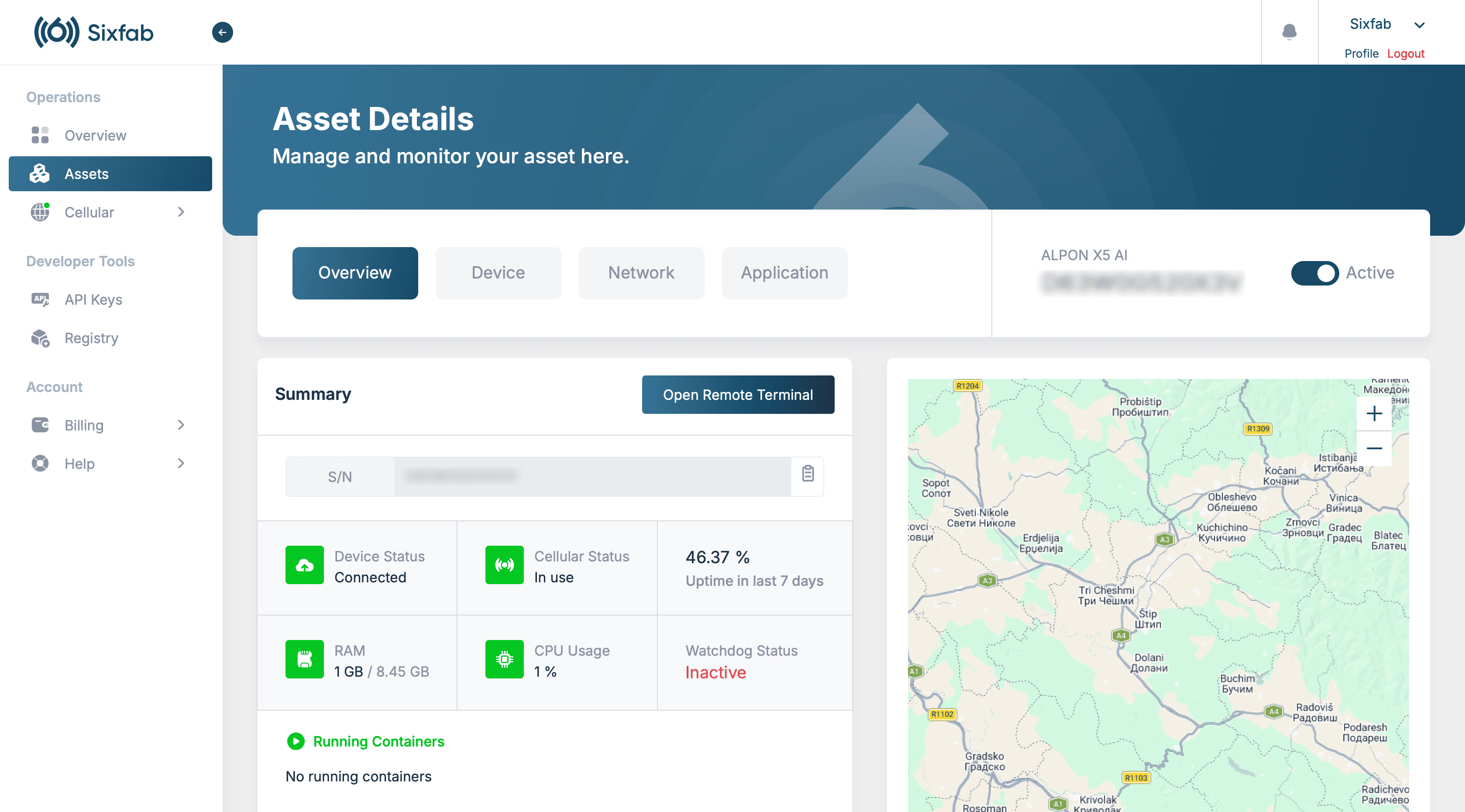
Online and the browser-based remote terminal open.
From the dashboard you can:
- Open a browser-based remote terminal — no local SSH client needed.
- Monitor device health: CPU, memory, temperature, network, container state.
- Deploy ARM64 container workloads to the device or to your fleet.
- Schedule OTA updates for firmware and applications.
- Manage eSIM profiles and configure network failover.
Sanity check: the DEEPX NPU is reachable
The dxrt-cli tool ships in the sixfab-dx APT package
together with the DEEPX runtime (dxrt-runtime) and the kernel driver, so
install it first from the remote terminal. Then run dxrt-cli -s to confirm the
DEEPX DX-M1 NPU is enumerated and the runtime, driver, and on-NPU
firmware are reporting cleanly. This is the same one-shot status command you'll
rely on later for production diagnostics.
# 1. Install the DEEPX runtime, driver, and CLI tools
sudo apt update && sudo apt install sixfab-dx
# 2. Full NPU, driver, runtime, and firmware status report
dxrt-cli -s
DXRT v3.2.0
 * Device 0: DX-M1, Accelerator type
 * RT Driver version  : v2.1.0
 * PCIe Driver version: v2.0.1
 * FW version         : v2.5.0
 * PCIe   : Gen3 X1 [01:00:00]
NPU 0: voltage 750 mV, clock 1000 MHz, temperature 46 °C
NPU 1: voltage 750 mV, clock 1000 MHz, temperature 46 °C
NPU 2: voltage 750 mV, clock 1000 MHz, temperature 46 °C
The hardware and runtime stack are healthy. The next chapter is AI Model Deployment: pick a pre-compiled model from the Sixfab Model Zoo, bring your own ONNX model through the Custom Models Deployment Workflow, or instrument the runtime for production with System Monitoring. The exit ramp below points to each.
For local SSH or HDMI console access, the default user is alpon
with password sixfab. Change it on first login with
passwd. See ALPON X5 AI OS
for hardening guidance.
First-boot troubleshooting
Most setup issues resolve in under a minute. Open the question that matches what you see; for anything else, head to the full Troubleshooting guide.
The Power LED does not turn on
Confirm the adapter is the included 27 W USB-C PD unit. Standard USB-C phone chargers may not negotiate the required voltage. As a fallback, wire a 12–24 V DC supply into the screw terminal.
The Status LED never turns green
The device cannot reach ALPON Cloud. Confirm the Ethernet cable is seated, or move the device to a location with better cellular coverage.
The QR code does not scan
Use the Manual registration path in Step 1. Type the serial number from the bottom label into Sixfab Connect Assets → Register Asset.
The device shows Offline in Sixfab Connect after a few minutes
Confirm the Cellular LED is not red. If LTE signal is weak and you have not connected Ethernet, plug in a cable. The device only reports Offline when no network path is available.
dxrt-cli -s reports the NPU but versions do not match
Driver, runtime, and on-NPU firmware carry independent version numbers. A drift between any two can cause silent CPU fallback or model-load errors. See System Monitoring for the canonical version-alignment matrix.
I cannot find the activation code or serial number
Both are printed on the bottom label of the device, next to the QR code. If the label is missing or unreadable, contact Sixfab support with your order number.
Where to next
The device is up, the LEDs are green, and the DEEPX DX-M1 NPU answers. The next chapter is AI Model Deployment: pick more pre-compiled models, bring your own trained model to the NPU, or instrument the deployment for production.
dxrt-cli and dxtop. Read NPU telemetry, surface
it to dashboards, and watch deployments in real time.
Monitor the NPU →
Updated 5 days ago