
Update Containers from Sixfab Container Registry
Step-by-step ALPON guide for Update Containers from Sixfab Container Registry. Covers prerequisites, configuration, deployment, and verification.
Build and roll out container updates from Sixfab Container Registry
Build and push a versioned container image from CI/CD, then roll it out to ALPON X5 AI and ALPON X4 from the Applications tab in ALPON Cloud. This guide covers ARM64 builds, tagging strategy, dashboard deployment, and rollback without documenting an unpublished container-management API.
Build your image for linux/arm64, push it to cr.sixfab.io/<your_username>/<image>:<tag>, then open the device's Applications tab in ALPON Cloud. Click Restart for a mutable tag such as :latest, or Edit Deployment to select an immutable tag such as :v1.2.3. CI/CD can automate the image build and push; rollout remains a dashboard action until Sixfab publishes a container-management API.
Both ALPON X5 AI (Raspberry Pi CM5, Cortex-A76) and ALPON X4 (Raspberry Pi CM4, Cortex-A72) run on ARM64. Every container image you push to cr.sixfab.io must include a linux/arm64 variant. Custom images must be built with docker buildx build --platform linux/arm64. Architecture mismatches surface at container start as exec format error.
Choose your path
Both paths produce the same end state: a new image version running on the device. They differ in who pulls the trigger and how traceable the rollout is. Most teams start with the manual path and graduate to the automated path once releases settle into a cadence.
Manual update
Build locally, push to cr.sixfab.io, then click Restart or Edit Deployment on each device from ALPON Cloud.
- Best for small fleets and early-stage projects
- Zero CI/CD setup required
- Per-device control over rollout timing
- Works with any image tag strategy
Automated update
CI pipeline builds for linux/arm64, pushes a new tag, then calls the Sixfab Developer API to restart the deployment across the fleet.
- Best for production fleets at scale
- Reproducible builds tied to git commits
- Fleet-wide rollout from a single push
- Pairs with immutable tags for traceability
Prerequisites
Before either update path, make sure your build environment, registry account, and target devices are ready.
linux/arm64 (required for ALPON X5 AI and ALPON X4)
cr.sixfab.io from the build host (cellular, Wi-Fi, or wired)
Use the Registry page for build-host credentials. Application deployments select images from the account registry; do not copy registry passwords into container environment variables.
Dockerfile templates for ALPON
Every update starts with a rebuilt image. Use these production-tested Dockerfile templates as a starting point. All templates use slim or alpine base images, install only runtime dependencies, run as a non-root user, and produce small layer caches that push quickly over cellular links.
Common rules across stacks
- Always pin the base image to a specific minor version (for example,
python:3.12-sliminstead ofpython:slim). - Use multi-stage builds for compiled languages (Go, Rust, Node TypeScript) to keep runtime images small.
- Copy
requirements.txt,package.json, orgo.modbefore the rest of the source so Docker can cache dependency layers. - Set
WORKDIR /appand run the process as a non-rootUSERwhen possible. - Define
EXPOSEwith the container-side port, not the host port. Host ports are configured at deploy time in ALPON Cloud and must be available on the device.
Pick a starting point
Python application
For a Python service such as an MQTT publisher, REST API, or data collector. The template installs system dependencies in a single layer, then installs Python packages in a separate cached layer.
FROM python:3.12-slim AS base

ENV PYTHONDONTWRITEBYTECODE=1 \
    PYTHONUNBUFFERED=1 \
    PIP_NO_CACHE_DIR=1

WORKDIR /app

# System packages (kept minimal for cellular pull speed)
RUN apt-get update && apt-get install --no-install-recommends -y \
      ca-certificates curl \
    && rm -rf /var/lib/apt/lists/*

# Dependency layer (cached unless requirements.txt changes)
COPY requirements.txt ./
RUN pip install -r requirements.txt

# Application code
COPY . .

USER 1000:1000
EXPOSE 8080
CMD ["python", "-u", "main.py"]
Node.js application
For a Node.js HTTP service or worker. The multi-stage build separates dependency installation from the runtime image, producing a slimmer final layer.
# Stage 1 - install dependencies
FROM node:20-alpine AS deps
WORKDIR /app
COPY package*.json ./
RUN npm ci --omit=dev

# Stage 2 - runtime
FROM node:20-alpine AS runtime
ENV NODE_ENV=production
WORKDIR /app

COPY --from=deps /app/node_modules ./node_modules
COPY . .

USER node
EXPOSE 3000
CMD ["node", "server.js"]
Go application
For a compiled Go binary. The build stage compiles statically for ARM64, then the runtime stage uses scratch or alpine for a minimal image, often under 20 MB.
# Stage 1 - build for ARM64
FROM --platform=$BUILDPLATFORM golang:1.22-alpine AS build
WORKDIR /src
COPY go.mod go.sum ./
RUN go mod download
COPY . .
ENV CGO_ENABLED=0 GOOS=linux GOARCH=arm64
RUN go build -ldflags="-s -w" -o /out/app ./cmd/app

# Stage 2 - minimal runtime
FROM alpine:3.20
RUN apk add --no-cache ca-certificates
COPY --from=build /out/app /usr/local/bin/app
USER 1000:1000
EXPOSE 8080
CMD ["/usr/local/bin/app"]
Static site or Nginx reverse proxy
For a static frontend, dashboard, or thin Nginx layer in front of another container. Useful as a quick smoke test image too.
FROM nginx:1.27-alpine

# Static assets
COPY ./dist /usr/share/nginx/html

# Optional custom server block
COPY ./nginx.conf /etc/nginx/conf.d/default.conf

EXPOSE 80
CMD ["nginx", "-g", "daemon off;"]
Docker only transfers layers that have changed since the last push. If your dependency layer is unchanged, a code-only update over cellular can transfer in under 30 seconds. Keep dependency installation in a separate, early layer to maximize cache hits across releases.
Tagging strategy
How you tag releases determines how you update them. The two patterns below cover almost every team's needs. You can also use both at once: ship every release with both an immutable tag and the :latest alias.
:latest, :stable, :prod. The tag points to a moving target. Updating means pushing a new image under the same name, then restarting the container so it pulls the new digest.
:v1.2.3, :2026-05-22, :<git-sha>. Each release gets a unique tag that never changes. Updating means pushing a new tag and reconfiguring the deployment to point at it.
:v1.2.3 and :latest. Use the immutable tag for production deployments; use :latest for dev and one-tap restart updates.
Mutable tags like :latest make rollback impossible if a regression slips in. Tag every release with an immutable identifier (semver, git SHA, or build number) and update deployments explicitly.
Manual update from the dashboard
The fastest path. You build and push from your workstation, then drive the rollout from ALPON Cloud with two clicks. Use this path for small fleets, staging environments, or one-off urgent fixes.
-
1
Authenticate to the registry
From your build host, log in to
cr.sixfab.iowith the username shown on the Registry page in ALPON Cloud. If you have not set a password yet, click Reset Password on that page and save the displayed value (it is shown once).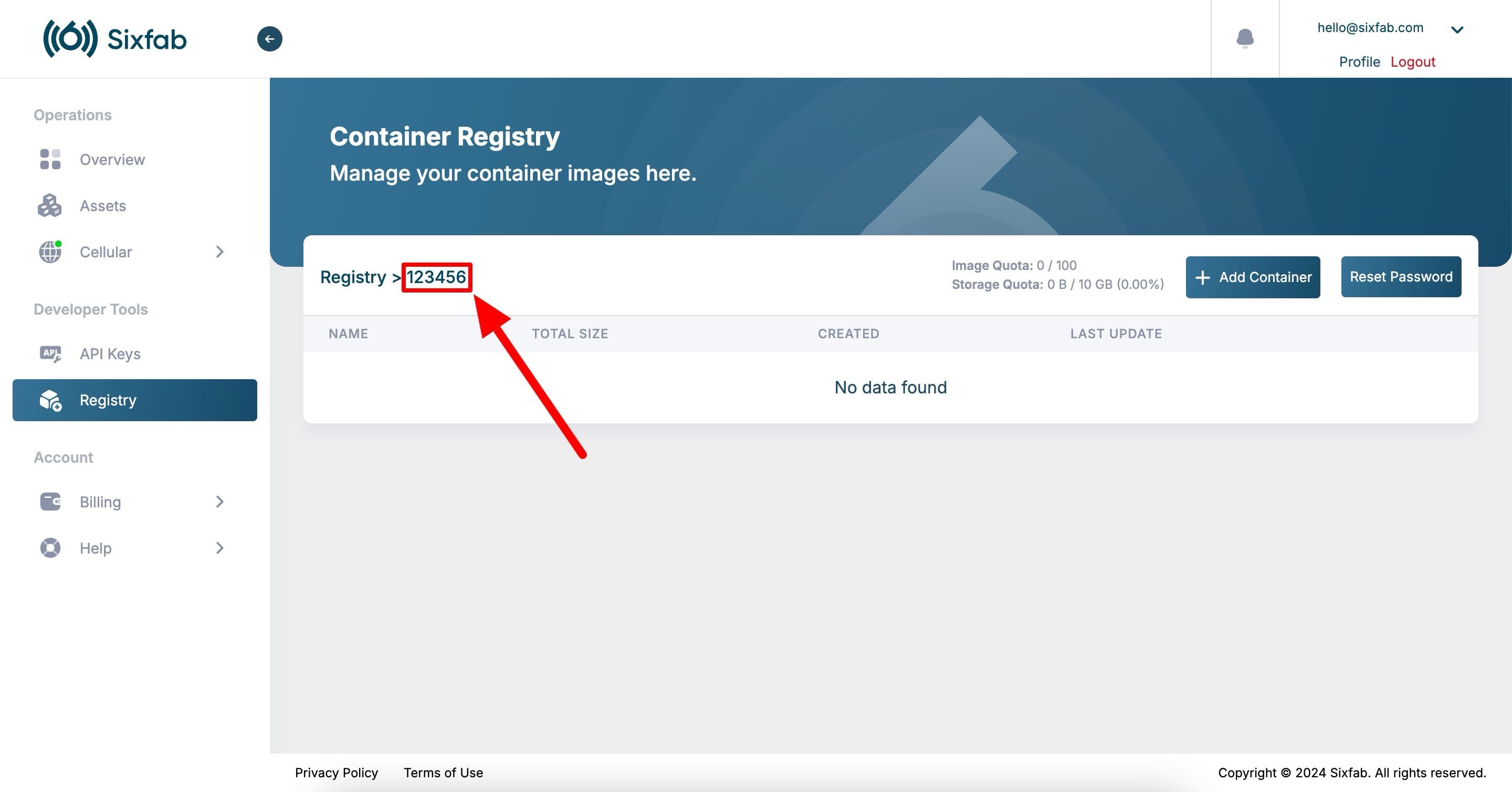
Your registry username appears at the top of the Registry page in ALPON Cloud. bashdocker login cr.sixfab.io --username <your_username> # Password: paste the registry password (hidden input)
-
2
Rebuild for ARM64 and tag
Build the image with Docker Buildx, targeting
linux/arm64, then tag it with the full registry path. Pick the new tag according to your tagging strategy.bash# 1. Build for ARM64 from the Dockerfile directory docker buildx build --load --platform linux/arm64 \ -t my-app:v1.2.3 . # 2. Tag with the registry path docker tag my-app:v1.2.3 cr.sixfab.io/<your_username>/my-app:v1.2.3
-
3
Push the new image
Upload the image to your private repository. Layer caching means only changed layers are transferred. Refresh the Registry page in ALPON Cloud to confirm the new tag, size, and digest appear.
bashdocker push cr.sixfab.io/<your_username>/my-app:v1.2.3 # The push refers to repository [cr.sixfab.io/719663/my-app] 571fd9f78ac9: Pushed v1.2.3: digest: sha256:2aeab3830f8eaf2775fd599fda6a516a95c1480239ba5e64a632a68c1f3bd53d size: 31.07 MB
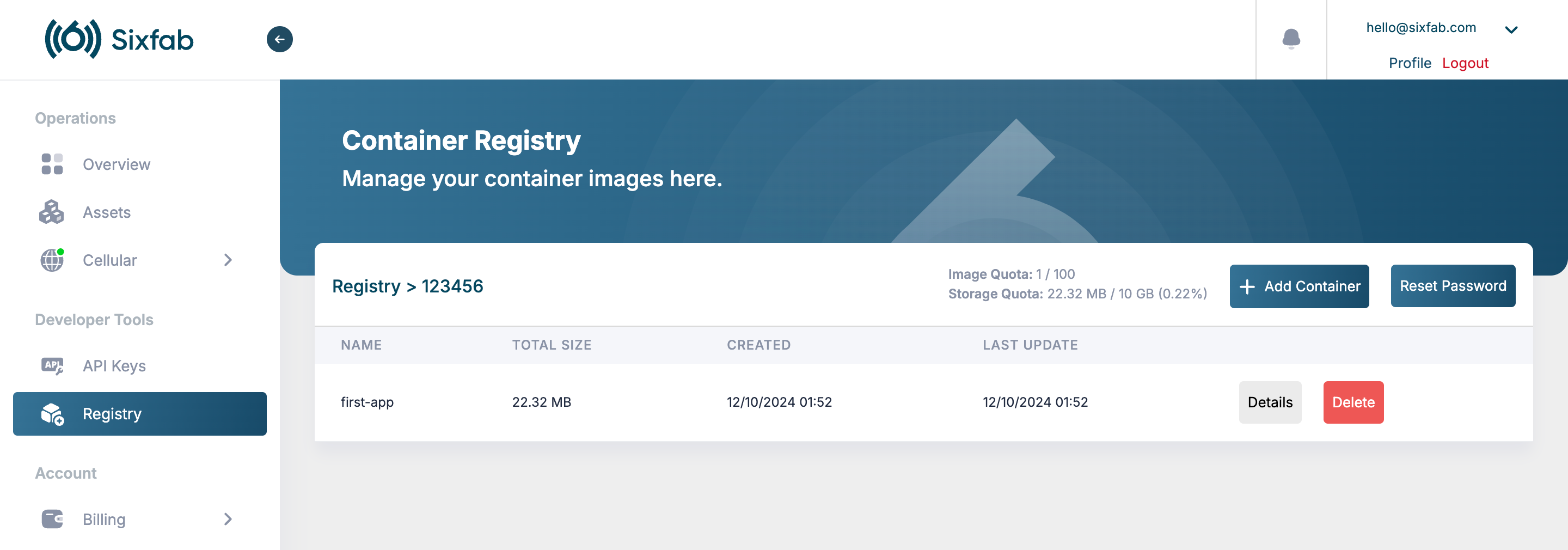
Registry page lists every repository with size, creation date, and last-update timestamp. -
4
Roll the update out to the device
Open the device's Assets → Applications tab in ALPON Cloud. Pick the action that matches your tagging strategy.
If you re-pushed a mutable tag (
:latest)Click Restart next to the running container. Use this only after confirming the dashboard restart behavior for your deployment. For a deterministic production update, select a new immutable tag with Edit Deployment. State in bind-mounted paths is preserved; writable container-layer state is not a persistence mechanism.
If you pushed a new immutable tag (
:v1.2.3)Click Edit Deployment, change the image tag in the form, and save. Save the edited deployment and verify the running image and configuration from the Applications tab.
-
5
Verify the new version is running
Watch the status flip back to Running in the Applications list. Then open Logs to confirm startup messages from the new version, or open the Container Terminal and inspect a version file or environment variable that you bumped with the release.
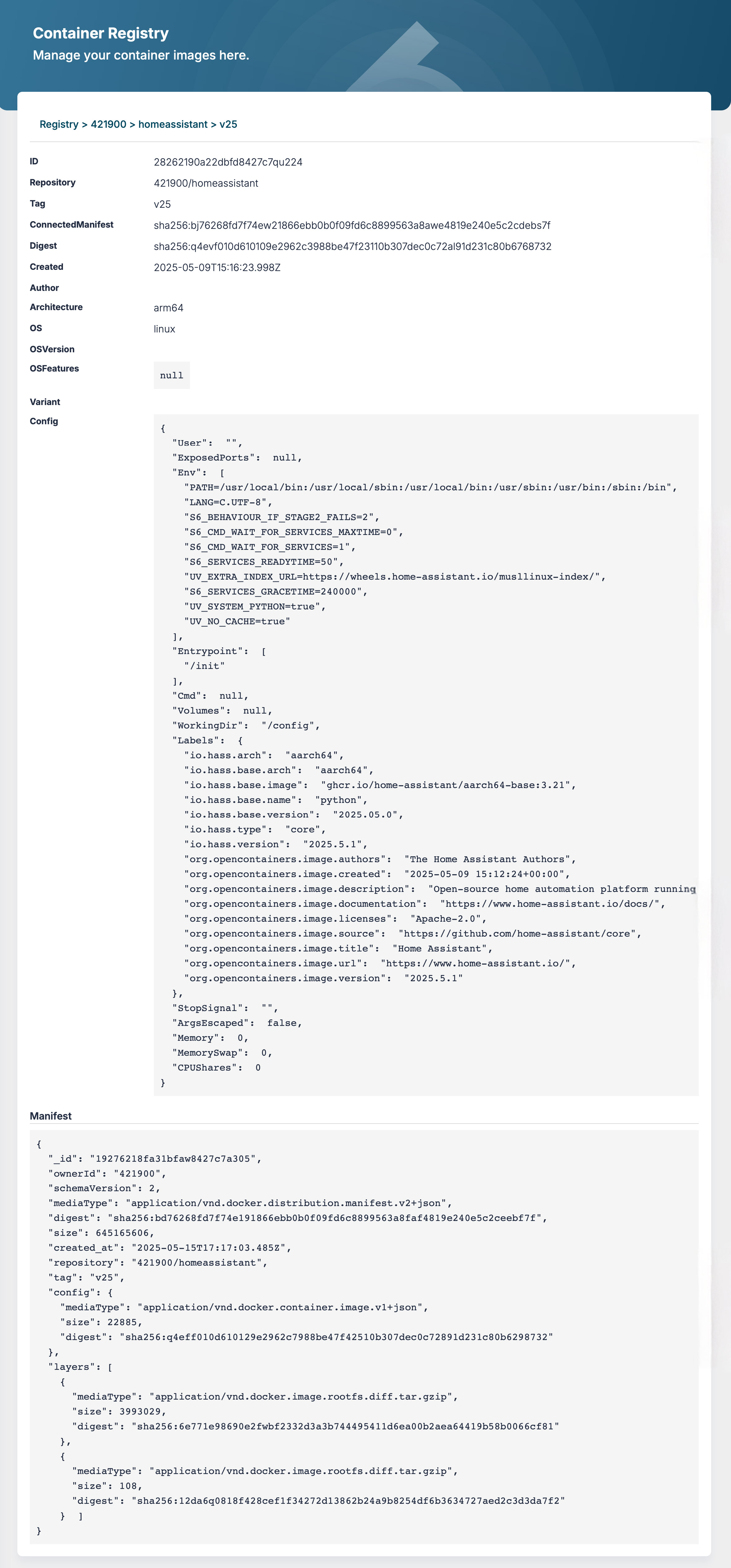
Click Details on a repository to inspect each tag with its digest, architecture (must read arm64), and manifest layers. Use See Usage to identify which devices run it.See Verify the rollout for the full post-update checklist.
Automated update from CI/CD
The Sixfab Container Registry is a standard OCI registry, so any CI system that can run Docker can build and push to it. To turn a CI push into a live rollout, pair the push step with a call to the Sixfab Developer API that triggers a restart on every device running the deployment.
GitHub Actions: build, push, and trigger restart
Store the following values as repository secrets before running the workflow:
SIXFAB_REGISTRY_USERNAME: your registry usernameSIXFAB_REGISTRY_PASSWORD: your registry password
name: Build and push ARM64 image

on:
  push:
    tags: ['v*']

jobs:
  release:
    runs-on: ubuntu-latest
    steps:
      - uses: actions/checkout@v4

      - name: Set up QEMU
        uses: docker/setup-qemu-action@v3
        with:
          platforms: arm64

      - name: Set up Docker Buildx
        uses: docker/setup-buildx-action@v3

      - name: Log in to Sixfab Container Registry
        uses: docker/login-action@v3
        with:
          registry: cr.sixfab.io
          username: ${{ secrets.SIXFAB_REGISTRY_USERNAME }}
          password: ${{ secrets.SIXFAB_REGISTRY_PASSWORD }}

      - name: Build and push (linux/arm64)
        uses: docker/build-push-action@v5
        with:
          context: .
          platforms: linux/arm64
          push: true
          tags: |
            cr.sixfab.io/${{ secrets.SIXFAB_REGISTRY_USERNAME }}/my-app:${{ github.ref_name }}
            cr.sixfab.io/${{ secrets.SIXFAB_REGISTRY_USERNAME }}/my-app:latest
GitLab CI equivalent
build_and_release:
  image: docker:24
  services: [docker:24-dind]
  only: [tags]
  before_script:
    - echo "$SIXFAB_REGISTRY_PASSWORD" | docker login cr.sixfab.io \
        -u "$SIXFAB_REGISTRY_USERNAME" --password-stdin
  script:
    - docker run --privileged --rm tonistiigi/binfmt --install arm64
    - docker buildx create --use
    - docker buildx build --platform linux/arm64 \
        -t cr.sixfab.io/$SIXFAB_REGISTRY_USERNAME/my-app:$CI_COMMIT_TAG \
        -t cr.sixfab.io/$SIXFAB_REGISTRY_USERNAME/my-app:latest \
        --push .
Build automation and rollout
Pushing a new tag does not automatically redeploy a running container. The examples above automate the ARM64 build and registry push; select and roll out the resulting tag from the Applications tab.
:latest + Restart
CI overwrites :latest. An operator then uses Restart in ALPON Cloud after confirming that the deployment refreshes mutable tags. This is convenient for development but weakens traceability.
:v1.2.3. An operator selects that exact tag with Edit Deployment, leaving an explicit version to use for rollback. Recommended for production.
The exact API path for restart and edit-deployment operations is described in the Sixfab Developer API reference. The examples above show the shape of the call; check the API reference for the current endpoint and request schema before deploying CI.
Rollback
Rollback is only as easy as your tagging strategy permits. With immutable tags, you point the deployment at the previous tag and click save. With mutable tags, rollback is impossible unless you kept the previous image digest somewhere accessible.
:v1.2.3 back to :v1.2.2, save. The device pulls the older image (it is usually still cached locally) and starts it. Completes in seconds.
:latest from your build host, then click Restart. Only possible if your source tree is git-versioned and you can check out the previous release.
Even after a successful release, keep the previous N tags in the registry. The platform blocks deletion of tags currently in use by a device, but a manual cleanup that runs before rollout completes can still leave you without a rollback target. A safe retention policy is to keep the last 5 to 10 immutable tags.
Verify the rollout
The container status flipping back to Running is necessary but not sufficient. Run through the checks below before declaring the rollout complete.
http://<device-ip>:30800/health).
cat /app/VERSION or print an environment variable that you bumped with the release.
Troubleshooting
Common failure modes when updating a container on ALPON, and how to recover from each.
Image
Container fails to start with exec format error after update
Symptom
The container is created but exits immediately. The Logs panel shows:
exec /usr/local/bin/app: exec format errorCause
The new image was built for linux/amd64 instead of linux/arm64. ALPON X5 AI (Raspberry Pi CM5) and ALPON X4 (Raspberry Pi CM4) cannot execute x86 binaries.
Fix
Rebuild with the correct platform flag and verify the manifest before re-pushing:
# 1. Rebuild explicitly for ARM64
docker buildx build --load --platform linux/arm64 \
  -t my-app:v1.2.3 .

# 2. Verify the architecture field reads "arm64"
docker manifest inspect cr.sixfab.io/<your_username>/my-app:v1.2.3
In CI, double-check the platforms: line in your workflow.
Auth
unauthorized: authentication required when pushing the update
Symptom
docker push rejects the upload before the first layer is transferred:
unauthorized: authentication requiredCause
The local Docker session is not authenticated against cr.sixfab.io, or the registry password has been reset since the last successful login.
Fix
Re-authenticate the build host. If the password is lost, click Reset Password on the Registry page in ALPON Cloud to issue a new one and store it in a secrets manager (it is shown only once).
docker login cr.sixfab.io --username <your_username>
Rollout Device still runs the old version after a Restart
Symptom
You pushed a new image, clicked Restart, the container status flipped back to Running, but the version stamp or behavior is unchanged.
Cause
You pushed under a new tag (for example, :v1.2.3), but the deployment still references the old tag. Restart does not switch the configured tag.
Fix
Click Edit Deployment instead of Restart. Change the image tag in the form to your new tag, then save. The new image is pulled and the container is recreated with the new tag.
Network Update pull is very slow over cellular
Symptom
The container stays in Pulling state for several minutes on a device with a cellular uplink. Subsequent restarts of the same tag are fast, but each new tag is slow again.
Cause
Initial pulls of large images over cellular are slow. If you also changed dependency layers (not just code), the entire dependency layer must transfer instead of just the application layer.
Fix
Restructure the Dockerfile so the dependency install layer is built before the application code copy. Docker caches that layer; subsequent code-only updates transfer in seconds:
COPY requirements.txt ./
RUN pip install -r requirements.txt

# Code goes last so it stays its own thin layer
COPY . .
Config
port is already allocated after Edit Deployment
Symptom
The deployment save fails immediately and the Logs panel shows a port binding error:
Error: Bind for 0.0.0.0:30800 failed: port is already allocatedCause
You changed the host port in the Edit Deployment form to one that another container on the same device is already using. Each host port can only be bound to one container at a time.
Fix
Pick a different available host port and save again. The container-side port stays the same; only the host mapping changes.
Runtime Container restart-loops after update
Symptom
The Applications list flips between Running and Exited every few seconds. Logs show the container crashing on startup.
Cause
The new version crashes during initialization. The three usual culprits: a missing environment variable, a schema mismatch with mounted volume data (a migration was not applied), or an unhandled exception in the new startup code.
Fix
Open Logs and read the crash trace. Address based on what you find:
- Missing env var: add it via Edit Deployment, then save.
- Volume data mismatch: stop the container, run the migration, restart.
- New-code regression: roll back to the previous tag using the procedure in Rollback while you debug.
Registry Cannot delete an old tag from the Registry
Symptom
Clicking Delete on an old tag or repository in the Registry page shows an error and the action is blocked.
Cause
The platform blocks deletion of any image or tag currently in use by a device, to prevent system errors on active deployments.
Fix
Click See Usage next to the tag. Update each device listed to a newer tag using the manual or automated path. Once no device uses the old tag, deletion is allowed.
Production image policy: Replace floating
:latestreferences with a reviewed immutable tag or digest, then record the selected version for rollback.
Updated 5 days ago